

Giving children their first iPhone or iPad is exciting, but it also comes with responsibilities. Parents want their children to learn, explore, communicate, and enjoy technology without spending too much time online or encountering inappropriate content.
Apple’s iOS 27 and iPadOS 27 make this easier with a redesigned parental control experience. Instead of relying only on app blocking and screen-time restrictions, parents can create flexible rules that adapt to their children’s age, daily routines, and growing independence.

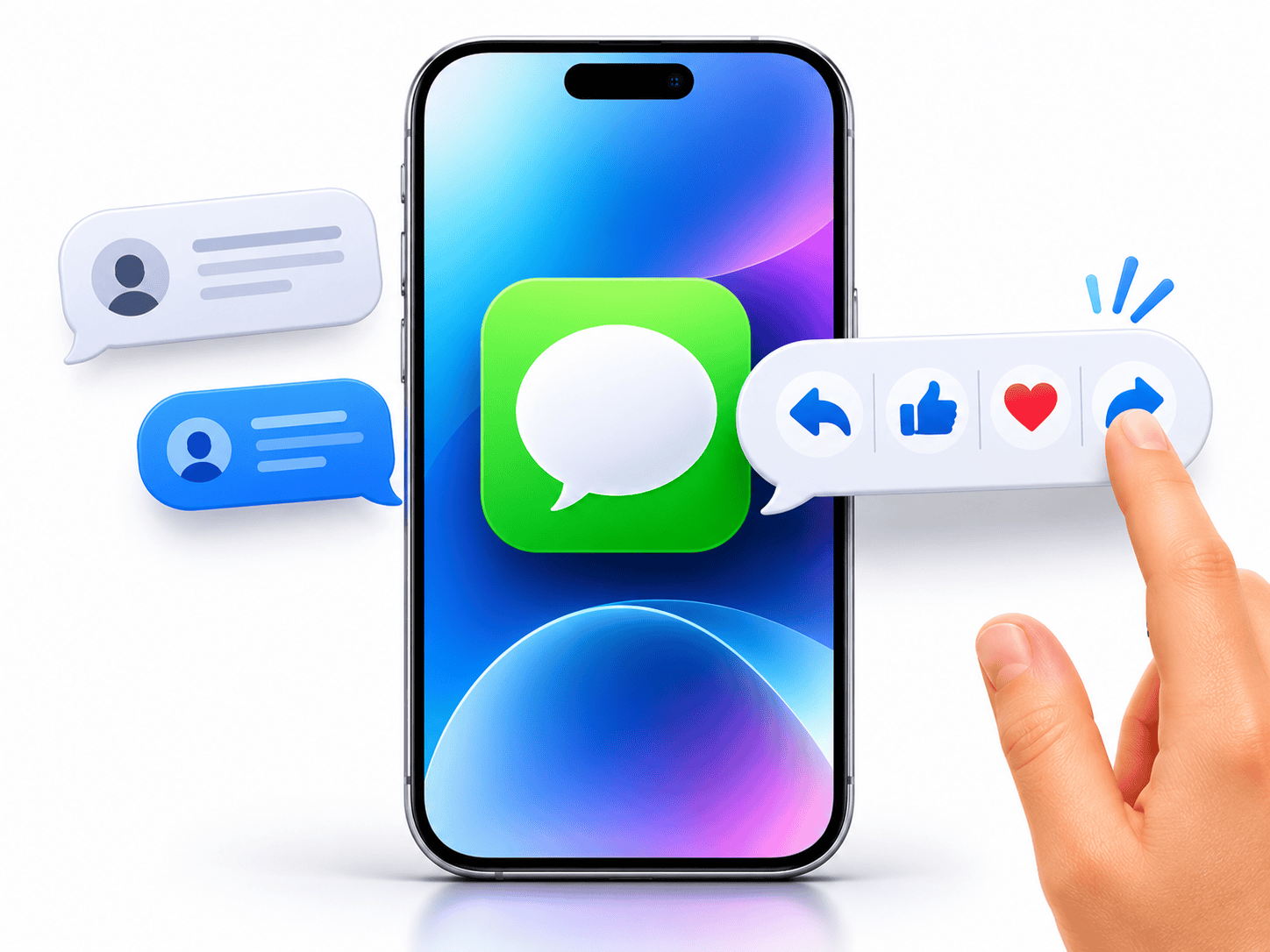

Here are the most useful parental controls every parent should know.
1. Set Up Family Sharing and a Child Account
Before configuring parental controls, start with Apple’s Family Sharing.

On your iPhone:
- Open Settings.
- Tap your name.
- Select Family.
- Follow the instructions to create or manage your family group.
- Select Add Member and create a Child Account if your child doesn’t already have one.
A Child Account allows parents or guardians to manage the child’s device settings through Family Sharing.
It also makes it easier to approve purchases, manage app access, and configure safety restrictions from a parent’s own device.
2. Decide Which Apps Your Child Can Use
Not every app is appropriate for every age group. Apple’s redesigned controls let parents decide which apps children can access.

You can start with essential apps and gradually approve additional ones as your child becomes more responsible.
To manage app access:
- Open Settings.
- Tap Family.
- Select your child’s name.
- Open Apps & Websites.
- Choose Restrictions.
- Review the available app permissions and restrictions.
You can also enable Ask to Buy so that eligible app downloads and purchases require parental approval.
3. Set Daily Time Allowances
One of the most useful additions is Time Allowances.
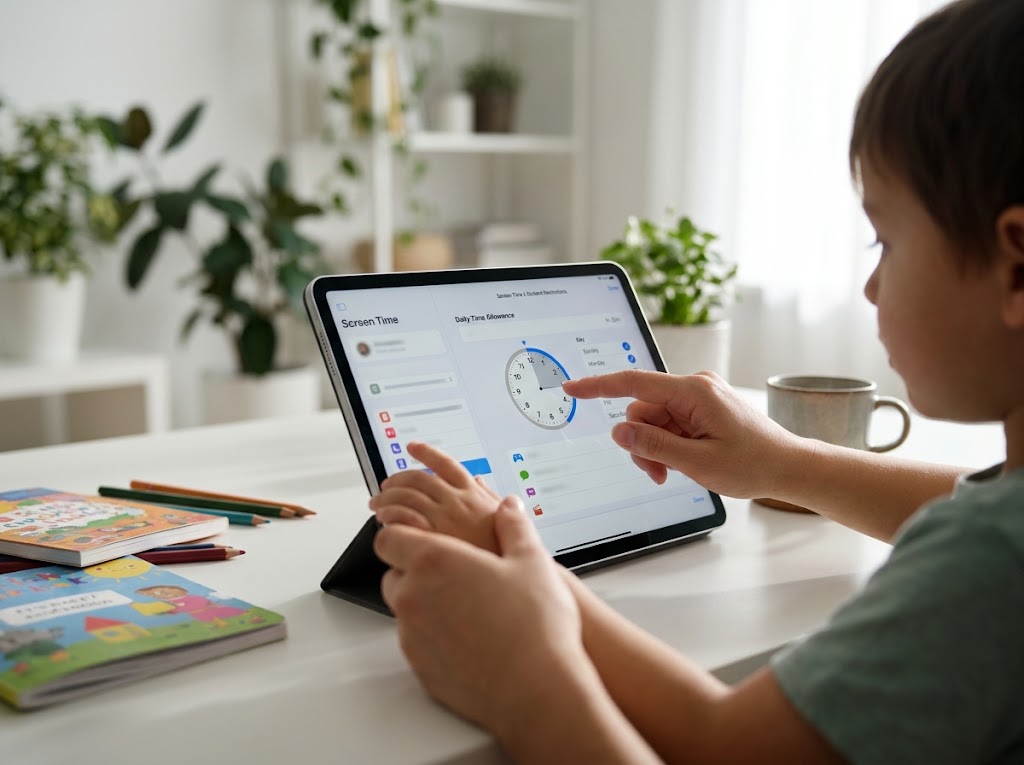
Rather than applying one strict limit to every activity, parents can set separate time budgets for categories such as:
- Games
- Social Media
- Entertainment
For example, you could allow more time for educational entertainment while keeping gaming and social media within reasonable limits.
To configure it:
- Open Settings.
- Tap Family.
- Select your child’s name.
- Tap Time Allowances.
- Adjust the available time for each category.
Apple also provides age-informed guidance to help parents choose reasonable starting limits.
4. Create Screen Time Schedules
Children have different routines during school days, weekends, and holidays. Screen Time Schedules let parents create different access rules for different periods.
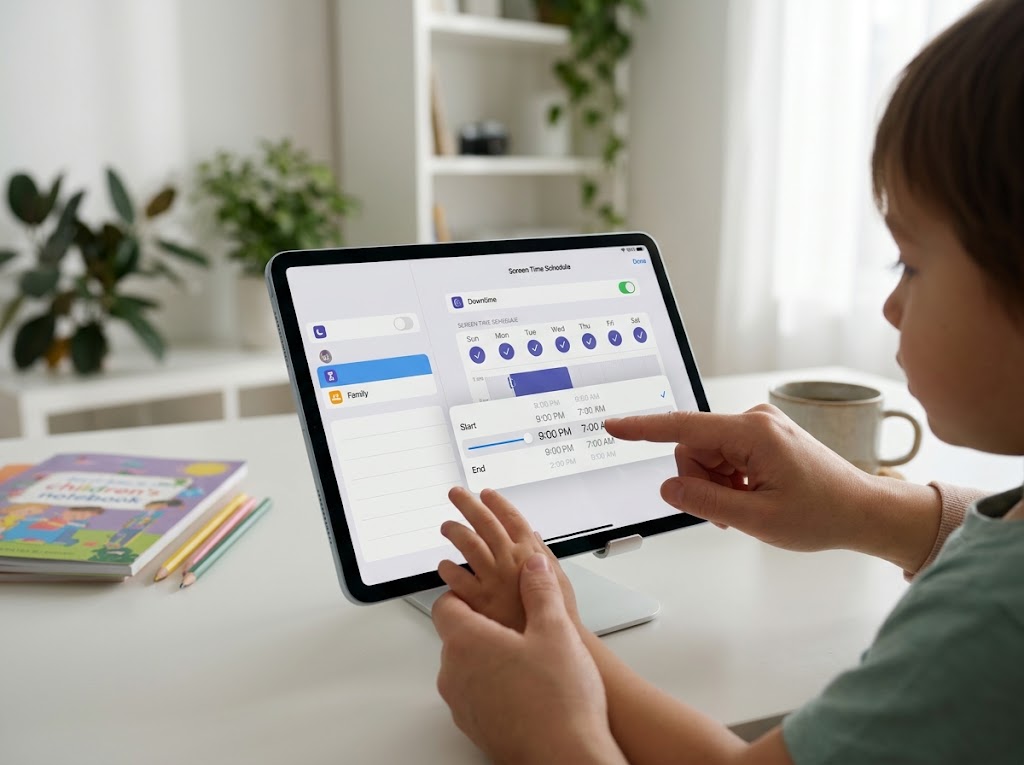
For example:
- Before School: Essential apps only.
- School Hours: Restrict entertainment and games.
- After School: Allow educational apps and limited gaming.
- Bedtime: Keep entertainment and social media unavailable.
To set up a schedule, go to:
Settings → Family → Child’s Name → Screen Time Schedule
Enable Schedule, add a time window, choose the days, and select the app categories your child can access.
You can create separate schedules for weekdays and weekends.
5. Approve Websites With Ask to Browse
Internet access is one of the most important areas to manage.

Apple’s Ask to Browse feature allows children to request permission before visiting new websites in Safari and other supported browsers.
Parents can approve or decline individual requests and maintain a list of allowed websites.
You can also choose between:
- Approved Websites Only
- Limit Adult Websites
- Unrestricted
This gives younger children a more controlled browsing experience while allowing older children to gradually explore the internet with fewer restrictions.
6. Control Who Your Child Can Contact
Parents can manage the people their children communicate with through Phone, Messages, and FaceTime.

The Allowed Contacts feature lets parents review approved contacts and control whether children can add or edit contacts independently.
You can also configure different communication permissions for normal Screen Time hours and periods when the device is paused.
This is particularly useful for younger children who are beginning to communicate independently.
7. Enable Communication Safety
Communication Safety provides another layer of protection.

It can detect and blur images and videos containing nudity in supported experiences. In iOS 27, Apple has expanded the protection to include detected gore and violent content.
The feature also provides age-appropriate guidance and resources to help children make safer decisions.
To review it:
Settings → Family → Child’s Name → Communication Safety
Apple says the detection happens on-device, and it does not receive access to the protected photos or videos.
8. Keep Important Apps Available With Always Allowed
Parental controls should not prevent children from reaching their parents or contacting someone they trust during an emergency.

That’s why Always Allowed is an important setting.
Parents can keep selected apps and contacts accessible even when other device restrictions are active.
Go to: Settings → Family → Child’s Name → Always Allowed
Add important apps and trusted contacts that your child should always be able to access.
9. Keep Reviewing the Rules as Your Child Grows
The best parental control setup is not necessarily the strictest one.
A younger child may need approved websites, limited apps, and close supervision. An older child may benefit from more freedom, a larger contact list, and fewer restrictions.

Review the settings regularly and discuss why particular rules exist.
Involving children in these decisions can help them understand digital responsibility rather than simply treating parental controls as punishment.
Apple’s redesigned parental controls make the iPhone and iPad more manageable for families. With Family Sharing, Time Allowances, Screen Time Schedules, Ask to Browse, and Communication Safety, parents can create a safer digital environment without removing every opportunity for exploration.
The goal is to give children enough freedom to learn and enjoy technology while establishing boundaries that protect their time, privacy, and well-being.
Start with a few essential restrictions, talk openly about responsible device use, and gradually adjust the rules as your child becomes more independent.
You may also like
- Portable Magnetic 3-in-1 Charger: An Essential Apple Setup Upgrade
- Give Your Child More iPhone Freedom With These 9 Parental Controls
- Apple Black Friday Deals 2026: Best Amazon MacBook, iPhone & iPad Offers
- INIU Power Bank: Essential Portable Power for Your Apple Devices
- Ember Mug 3: The Smart Upgrade for Your Apple Desk Setup
Discover more from The Apple Byte
Subscribe to get the latest posts sent to your email.
"Note:We may receive a affiliate commission when you purchase products mentioned on our website."


