Your iPhone Home Screen doesn’t have to look like everyone else’s. Apple offers plenty of built-in customization options that let you change app icons, add interactive widgets, organize apps, and create a completely personalized layout.

Whether you prefer a clean minimalist design or a Home Screen filled with useful shortcuts, these 10 tips will help you make your iPhone look and work the way you want.
1. Change App Icon Colors and Appearance
You can customize your app icons with Light, Dark, Clear, or Tinted appearances.

How to do it:
- Touch and hold an empty area on your Home Screen.
- Tap Edit and select Customize.
- Choose Light, Dark, Clear, or Tinted.
- Adjust the tint color and saturation to match your wallpaper.
2. Make App Icons Bigger and Remove Labels
Want a cleaner Home Screen? You can make app icons larger and remove the names displayed underneath them.

Enter Home Screen customization mode and select Large. Your icons will become bigger, creating a minimalist appearance without app labels.
3. Add Interactive Widgets
Widgets let you access useful information without opening individual apps.
You can add Weather, Calendar, Photos, Reminders, Batteries, and Music widgets.
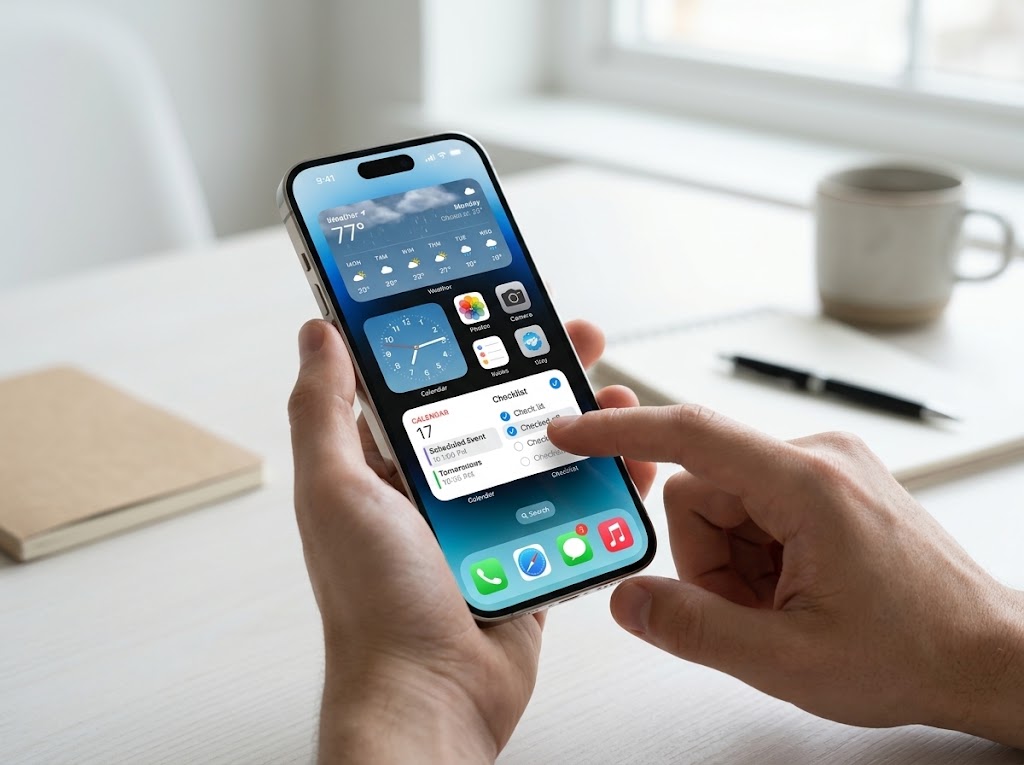
Touch and hold your Home Screen, tap Edit → Add Widget, select an app, and choose your preferred widget size.
Some widgets are interactive, allowing you to complete reminders, control music, or perform other actions directly from the Home Screen.
4. Arrange Apps Anywhere on Your Home Screen
You no longer need to keep every app in a fixed grid.
You can position app icons and widgets around your wallpaper, leaving empty spaces to create a cleaner layout.

This is particularly useful if you want to keep the center of your wallpaper visible or create a symmetrical design.
5. Turn App Icons Into Widgets
Some apps offer multiple widget sizes that can replace their regular icons.
Touch and hold a supported app icon and select an available widget size from its quick-action menu.

For example, you can turn a Weather or Stocks icon into a larger widget to see information without opening the app.
6. Hide Apps Without Deleting Them
Want to remove unnecessary icons without uninstalling applications?

Touch and hold an app, select Remove App, and choose Remove from Home Screen.
The app remains installed and accessible through the App Library or Spotlight Search.
7. Create a Photo Widget
You can display your favorite pictures directly on your Home Screen.
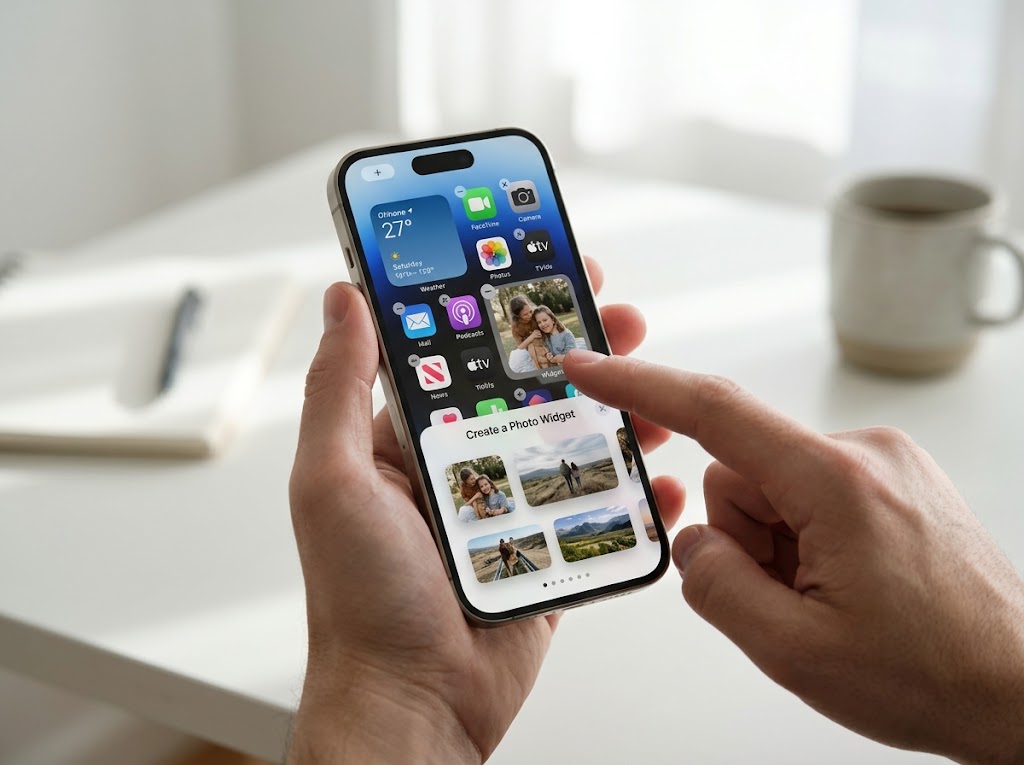
Add the Photos widget through the widget gallery. For more control over the displayed picture, create an album containing your chosen photos and configure the widget if its available options allow it.
It’s a simple way to make your Home Screen feel more personal.
8. Add Websites to Your Home Screen
Do you frequently visit certain websites? You can add them as shortcuts that look like app icons.

- Open the website in Safari.
- Tap the Share button.
- Select Add to Home Screen.
- Edit the name and tap Add.
You can now open your favorite website directly from your Home Screen.
9. Organize Apps With Folders
If your Home Screen is crowded, folders are an easy way to organize everything.

Touch and hold an app icon, then drag it onto another app to create a folder. You can rename folders using categories such as Social, Photography, Travel, Finance, or Productivity.
This keeps frequently used apps organized and reduces clutter.
10. Use Focus Modes to Switch Home Screens
Here’s a particularly useful trick: create different Home Screens for different activities.

For example:
- Work Focus: Email, Calendar, Notes, and productivity apps.
- Personal Focus: Social media, Photos, Music, and entertainment.
- Sleep Focus: Clock, Weather, and essential apps.
Go to Settings → Focus, select a Focus mode, and customize the Home Screen pages associated with it.
Your iPhone can automatically switch to the appropriate layout when a Focus mode activates.
Final Verdict
Your iPhone Home Screen can be more than a collection of app icons. With customized colors, interactive widgets, photo displays, folders, and Focus modes, you can create a layout that looks better and makes everyday tasks easier.
Start with a few changes, experiment with different designs, and build a Home Screen that reflects your style.
Don’t miss out
- 10 iPhone Home Screen Tricks That Make Your iPhone Look Amazing
- VANMASS Car Phone Holder: An Essential Upgrade for iPhone Commuters
- INIU 15W Wireless Charger: A Practical Upgrade for Your Apple Desk
- How to Delete Siri AI Conversation History on iPhone Running iOS 27 or lower
- iOS 27 Draining Your iPhone Battery? Here’s Why and How to Fix It
Discover more from The Apple Byte
Subscribe to get the latest posts sent to your email.
"Note:We may receive a affiliate commission when you purchase products mentioned on our website."