

A smart home should make everyday life easier, not more complicated. Whether you want to control your lights, secure your doors, adjust your thermostat, or automate your daily routines, Apple’s Home view and its app offers several useful features that can help.
With support for HomeKit and Matter-compatible accessories, you can manage different smart home devices from your iPhone, iPad, Apple Watch, and other Apple devices.
Here are five Apple Home View tips and tricks worth trying.
1. Create Smart Scenes for Everyday Routines
One of the best features of Apple’s Home app is Scenes.
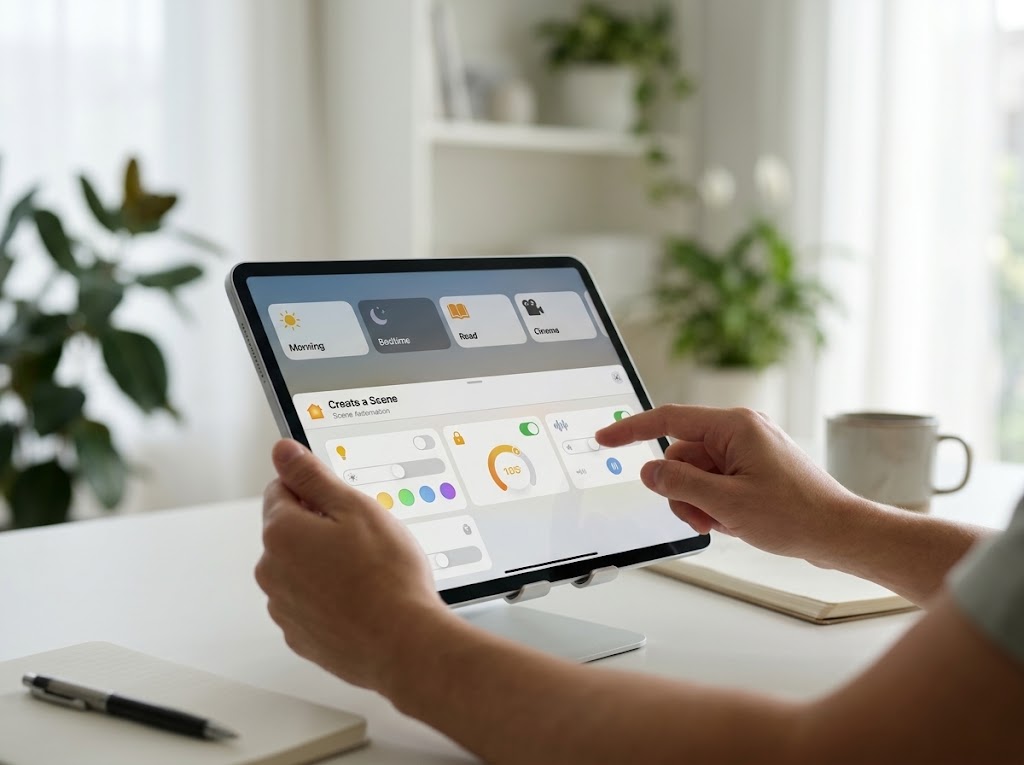
Instead of controlling individual accessories, you can create a scene that activates multiple devices simultaneously.
For example, create a Good Night scene that:
- Turns off the living room lights.
- Switches off connected entertainment devices.
- Locks compatible smart doors.
- Adjusts the thermostat.
- Turns on a bedroom night light.
To create a scene:
- Open the Home app.
- Tap the Add button.
- Select Add Scene.
- Choose a suggested scene or select Custom.
- Give your scene a name.
- Add the accessories you want to control.
- Adjust their settings and tap Done.
You can activate the scene with a single tap or ask Siri to run it.
2. Automate Your Home Based on Time and Location
Why manually turn on your lights every evening when your home can do it automatically?
Apple Home supports automations based on time, location, and accessory or sensor activity.

For example, you can configure your home to:
- Turn on outdoor lights at sunset.
- Switch off selected lights when everyone leaves.
- Turn on the hallway lights when a motion sensor detects movement.
- Activate a welcome-home scene when someone arrives.
To create an automation:
- Open the Home app.
- Go to the Automation tab.
- Tap Add Automation.
- Select a trigger, such as a time of day, location, or sensor activity.
- Choose the accessories or scenes to activate.
- Configure the settings and save.
Location-based automations require location sharing to be enabled for the relevant home members. Some automations also require a compatible home hub.
3. Add Your Favorite Accessories to Control Center
You don’t always need to open the Home app to control your smart devices.

Apple lets you add frequently used Home accessories and scenes directly to Control Center.
For example, you can add shortcuts for:
- Living room lights.
- Bedroom lights.
- Smart door locks.
- Air conditioning or thermostats.
- Good Night and Leave Home scenes.
To add them:
- Open Control Center on your iPhone.
- Tap the Add button.
- Select Add a Control.
- Find the Home Scene or Accessory control.
- Choose the device or scene you want to access.
This makes everyday smart home controls much faster.
4. Monitor Your Smart Home Security
If you have compatible security accessories, Apple Home can help you monitor activity around your property.

With supported HomeKit Secure Video cameras, you can receive notifications when a camera detects activity, recognizes a person, or identifies a package delivery.
You can also review activity history for supported accessories, including door locks, garage doors, and security systems.
To review your home’s activity:
- Open the Home app.
- Tap the More button.
- Select Home Settings.
- Open Activity.
- Enable the available activity history option.
With a compatible home hub and supported accessories, activity history can provide up to 30 days of information.
5. Use Siri and Intercom to Control Your Home
Siri makes controlling a smart home easier because you don’t have to find your iPhone or open an application.

You can say commands such as:
- “Hey Siri, turn off the living room lights.”
- “Hey Siri, set the bedroom temperature to 22 degrees.”
- “Hey Siri, activate Good Night.”
- “Hey Siri, lock the front door.”
If you have HomePod devices, Apple’s Intercom feature also lets you send voice announcements to different rooms or across your home.
For example, you can announce that dinner is ready or remind everyone to get ready before leaving.
Intercom is particularly useful for families with multiple HomePod devices.
Conclusion
Apple’s Home View app offers plenty of useful smart home features beyond basic device controls.
Scenes make everyday routines easier, automations reduce manual work, Control Center provides quick access, security monitoring helps you stay informed, and Siri makes voice control convenient.
The best way to start is with a simple Good Night scene and one or two automations. Once you become comfortable with them, you can gradually build a smarter and more connected home.
You may also like
- 5 Apple Home View Tricks That Make Your Smart Home Much Smarter
- Portable Magnetic 3-in-1 Charger: An Essential Apple Setup Upgrade
- Give Your Child More iPhone Freedom With These 9 Parental Controls
- Apple Black Friday Deals 2026: Best Amazon MacBook, iPhone & iPad Offers
- INIU Power Bank: Essential Portable Power for Your Apple Devices
Discover more from The Apple Byte
Subscribe to get the latest posts sent to your email.
"Note:We may receive a affiliate commission when you purchase products mentioned on our website."


