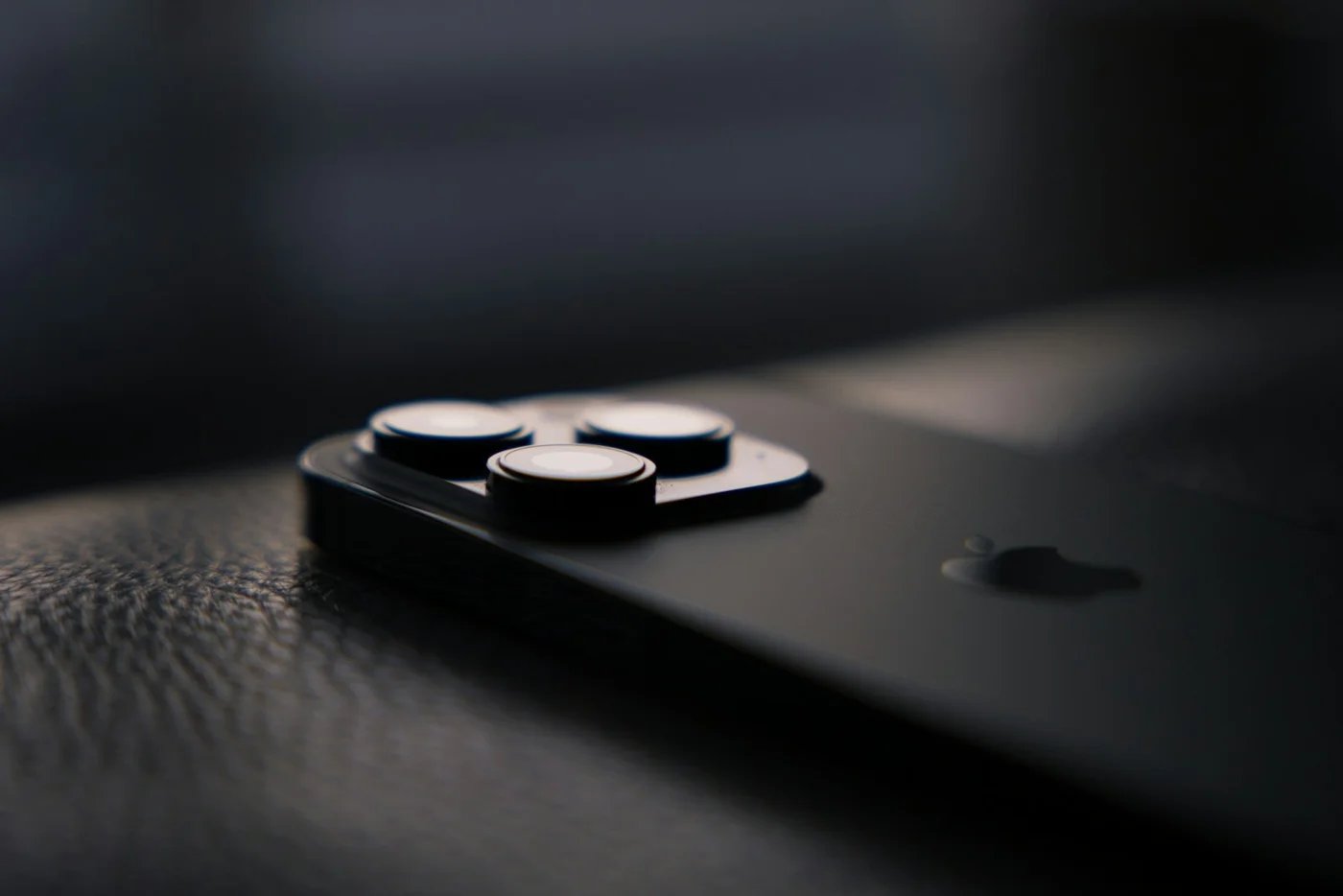
Is your iPhone taking longer to open apps, struggling with animations or feeling sluggish after a software update? Before spending hundreds of dollars on a new device, try a few simple changes.
Older iPhones can slow down because of limited storage, aging batteries, demanding apps and newer iOS features. Fortunately, you can often improve everyday performance without replacing your phone.
The Essential Samsung Curved Monitor for Your Apple Desk Setup
Here are five practical ways to make your old iPhone feel faster.

1. Free Up iPhone Storage
Running low on storage can make your iPhone less responsive, particularly when apps need space for temporary files.
To check your storage:
- Open Settings.
- Go to General → iPhone Storage.
- Review which apps and files occupy the most space.
- Delete unnecessary downloads, large videos and unused apps.
You can also enable Offload Unused Apps to remove infrequently used apps while retaining their documents and data.
Tip: Apple recommends keeping at least 1GB of free storage to avoid slowdowns. Having additional space is helpful for updates and everyday use.
2. Reduce Animations and Visual Effects
Apple’s smooth transitions and interface animations look attractive, but they can make older iPhones feel slower.
Go to Settings → Accessibility → Motion → Reduce Motion and enable it.
This reduces certain animations, including some screen transitions and motion effects.
You can also visit Settings → Accessibility → Display & Text Size → Reduce Transparency to simplify translucent interface elements.
These settings won’t increase your processor’s speed, but they can make navigating your iPhone feel quicker and more comfortable.
3. Check Your iPhone’s Battery Health
An aging battery can affect more than battery life. It can also reduce your iPhone’s peak performance.
To check its condition:
- Open Settings → Battery.
- Tap Battery Health or Battery Health & Charging, depending on your model.
- Review the maximum capacity and any battery service recommendations.
If your battery is significantly degraded, replacing it may improve performance and reliability.
A battery replacement is often more affordable than buying a new iPhone, especially if the rest of the device still works well.
You may also like
- New iPhone spyware can steal passwords and photos – Fox News
- Annoyed by Siri Suggestions? Here’s How to Hide Any App on iPhone
- Apple Pro and Tell Event October 28: What to Expect
- Upgrade Your Sound: Nothing Ear (3a) Noise Cancelling Earbuds
- Old iPhone Running Slow? Try These 5 Tricks Before Buying a New One
4. Update iOS and Your Apps
Outdated software can sometimes cause freezing, crashes or compatibility problems.
Go to Settings → General → Software Update and install the latest compatible stable iOS version.
Then open the App Store, tap your profile picture and check for available app updates.
Restart your iPhone afterward if performance remains sluggish.
Tip: After a major iOS update, background processing can temporarily affect battery life and responsiveness. Give your iPhone some time to finish these tasks before judging its performance.
5. Check Low Power Mode and Background Activity
Low Power Mode is excellent for extending battery life, but it can also make certain tasks run more slowly.
If your iPhone feels sluggish, check Settings → Battery → Power Mode on newer models, or the Low Power Mode setting on older ones.
Turn Low Power Mode off temporarily and see whether performance improves.
You can also open Settings → General → Background App Refresh and disable unnecessary background activity for apps you rarely use.
This may reduce background resource usage, although it won’t necessarily make every app open faster.
Bonus: Stop Force-Closing Every App
You don’t need to swipe away every app from the multitasking screen.
iOS automatically manages inactive apps, and repeatedly force-closing them can actually make reopening those apps slower.
Only force-close an app when it freezes or stops responding.
Final Verdict
A slow iPhone doesn’t always mean it’s time for an upgrade. Freeing up storage, reducing animations, checking battery health and updating software can make an older device noticeably more comfortable to use.
If your iPhone still struggles after trying these fixes, consider a battery replacement before spending money on a new phone.
Discover more from The Apple Byte
Subscribe to get the latest posts sent to your email.
"Note:We may receive a affiliate commission when you purchase products mentioned on our website."