
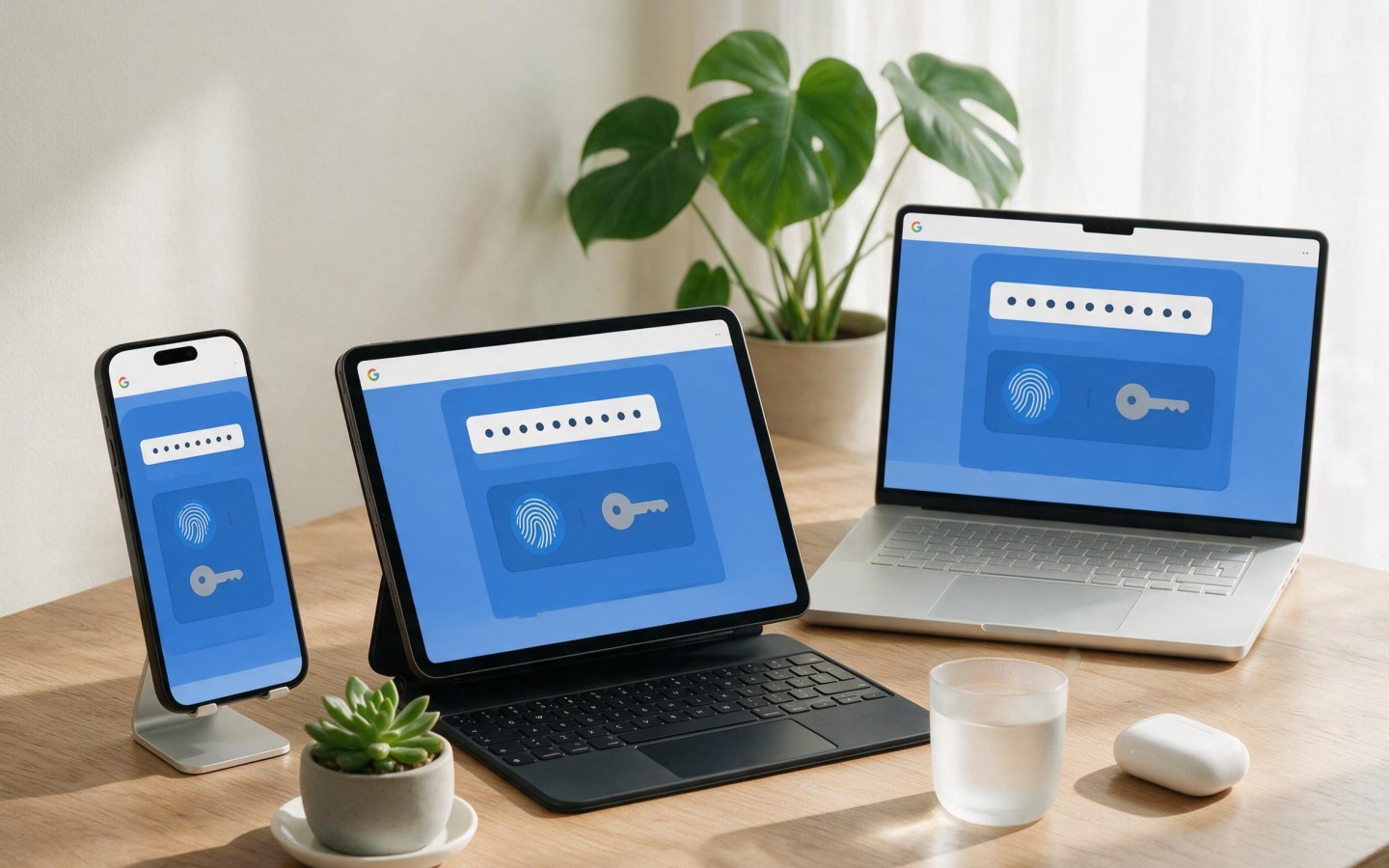
Google Password Manager can be designated as your primary AutoFill service on iPhone and iPad, extending credentials saved in Chrome into Safari and apps across Apple devices. By integrating Google’s browser-based password vault with iOS 15 (and later) AutoFill, users gain seamless login experiences without relying solely on iCloud Keychain. On macOS, Google Password Manager remains fully accessible within Chrome, maintaining cross-platform continuity for those entrenched in Google’s ecosystem.
To configure Google Password Manager on your iPhone or iPad, start by downloading or updating the official Google app from the App Store. Sign in with your Google account and enable two-factor authentication if you haven’t already. Return to Settings > Passwords > AutoFill Passwords, toggle AutoFill Passwords on, then select “Google Password Manager” under the “Allow Filling From” section. This step grants system-wide access to your Google-stored credentials for Safari and compatible apps.
When you next navigate to a login screen in Safari or an app that supports AutoFill, a prompt will appear offering to fill usernames and passwords from Google Password Manager. Tap the suggested credential, authorize with Face ID or Touch ID, and the form populates automatically. If no prompt appears, verify your Google app is signed in and that AutoFill Passwords remains enabled in system settings.
On Mac, Google Password Manager operates within Chrome. Open Chrome and sign in to your Google account. Visit chrome://settings/passwords to confirm “Offer to save passwords” and “Auto Sign-in” are both enabled. When using Chrome on macOS, saved Google credentials will automatically complete sign-in forms. At present, Safari does not support Google Password Manager directly, so Mac users must rely on Chrome for cross-device synchronization of these credentials.
Integrating Google Password Manager alongside iCloud Keychain offers flexibility but also poses considerations. Google’s service uses encryption tied to your Google account, while iCloud Keychain encrypts within Apple’s ecosystem. Users should evaluate which vault best aligns with their security preferences and backup strategies. If you switch between managers, export saved passwords from one service and import them into the other at passwords.google.com or via the iCloud Keychain export tools on macOS.
Troubleshooting common issues often involves permissions and account settings. Ensure your Google app has Background App Refresh enabled in Settings > General. If AutoFill stops working after an iOS update, toggle AutoFill Passwords off and on again, then restart your device. On Mac, updating Chrome to the latest version and verifying keychain integration in System Settings > Passwords can resolve most sync interruptions.
Looking ahead, Apple’s upcoming iOS 18 and macOS 15 releases may expand third-party password manager support, potentially enabling direct Safari integration for services like Google Password Manager. Developers will leverage enhanced Credential Provider APIs to offer deeper system hooks. For now, cross-device users should plan around current platform capabilities and keep both Apple and Google apps up to date.
Whether you prefer Google Password Manager or iCloud Keychain, configuring AutoFill on iPhone, iPad and Mac streamlines logins across apps and browsers. Regularly review your saved credentials, enable multi-factor authentication and export backups to maintain secure and uninterrupted access to your accounts across the Apple ecosystem.
FAQs
What is Google Password Manager?
Google Password Manager is a credential vault built into Google accounts and Chrome that securely stores and autofills passwords across supported devices and apps.
How do I select Google Password Manager as my autofill provider on iPhone?
Install or update the Google app, sign in, then go to Settings > Passwords > AutoFill Passwords, enable AutoFill, and choose Google Password Manager.
Can I use Google Password Manager in Safari on Mac?
Not directly. Safari currently does not support Google Password Manager, so Mac users should use Chrome to access Google-saved passwords.
Is Google Password Manager as secure as iCloud Keychain?
Both services encrypt stored credentials, but Google Password Manager ties encryption to your Google account while iCloud Keychain operates within Apple’s ecosystem. Choose based on your backup and security preferences.
Verdict
Enabling Google Password Manager on iPhone, iPad and Mac delivers cohesive cross-platform credential access for users invested in Google’s ecosystem. While iOS AutoFill integration streamlines logins in Safari and apps, Mac users rely on Chrome for direct support. This setup matters as it balances choice between Apple’s iCloud Keychain and Google’s vault, ensuring seamless access across browsers and devices. Users should maintain up-to-date apps, enforce multi-factor authentication and regularly back up passwords to uphold security and reliability.
Discover more from The Apple Byte
Subscribe to get the latest posts sent to your email.
"Note:We may receive a affiliate commission when you purchase products mentioned on our website."


