
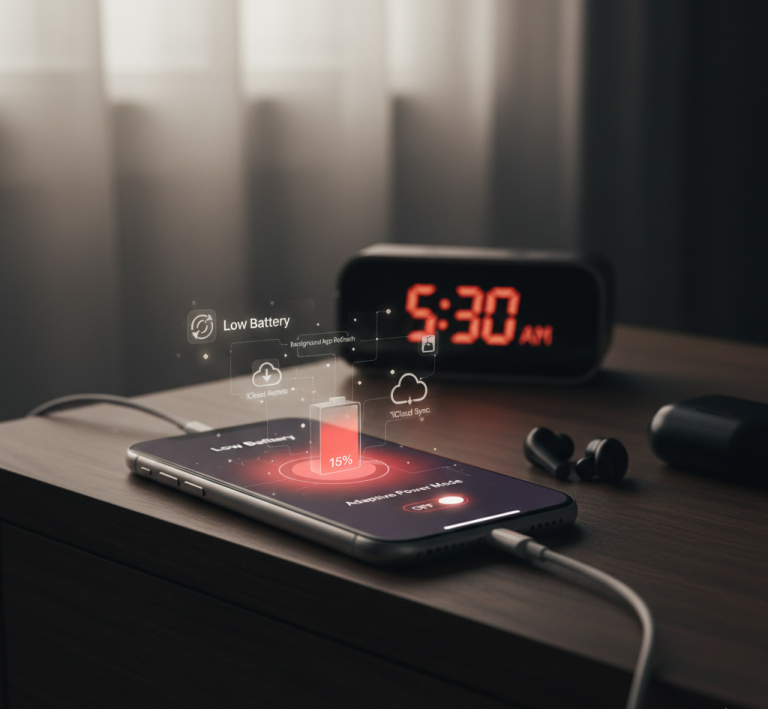
The Mystery of the Vanishing Overnight Charge
In early 2026, a common topic among the Apple community in the United States was the unexplained dip in iPhone battery life during the night. Many users wake up to find their device has lost 10% to 15% of its charge despite sitting idle on a nightstand.
This trend is particularly prevalent following the release of recent software updates like iOS 26. While iPhones are more powerful than ever, the complexity of background tasks—ranging from AI-driven indexing to constant cloud syncing—has made overnight power management a top priority for users seeking to maximize their device’s longevity.
Understanding Why Your Battery Drops While You Sleep
When your iPhone is “asleep,” it is rarely actually dormant. The device continues to perform essential maintenance, such as updating your photo library, re-indexing files for Spotlight search, and fetching high-priority notifications.
For Apple users, understanding these background behaviors is the first step toward reclaiming control over their hardware. Managing these energy-intensive processes ensures that your iPhone is ready for a full day of use without needing an immediate morning top-up.
Why iOS 26 Liquid Glass Drains Battery
Unlike the “flat” design of previous years, Liquid Glass uses real-time GPU rendering to calculate how light reflects and refracts through menus.
- Constant Rendering: Elements like toolbars and the Lock Screen time dynamically adapt to your wallpaper and movement.
- System Load: Independent tests have shown that these animations can increase power consumption by 10–13% during active use compared to the older iOS 18 style.
- Thermal Impact: Because the GPU is working harder to render these “glass” effects, some users report their iPhones running noticeably warmer, which further accelerates battery drain.
How to Fix the Battery Drain on iOS 26
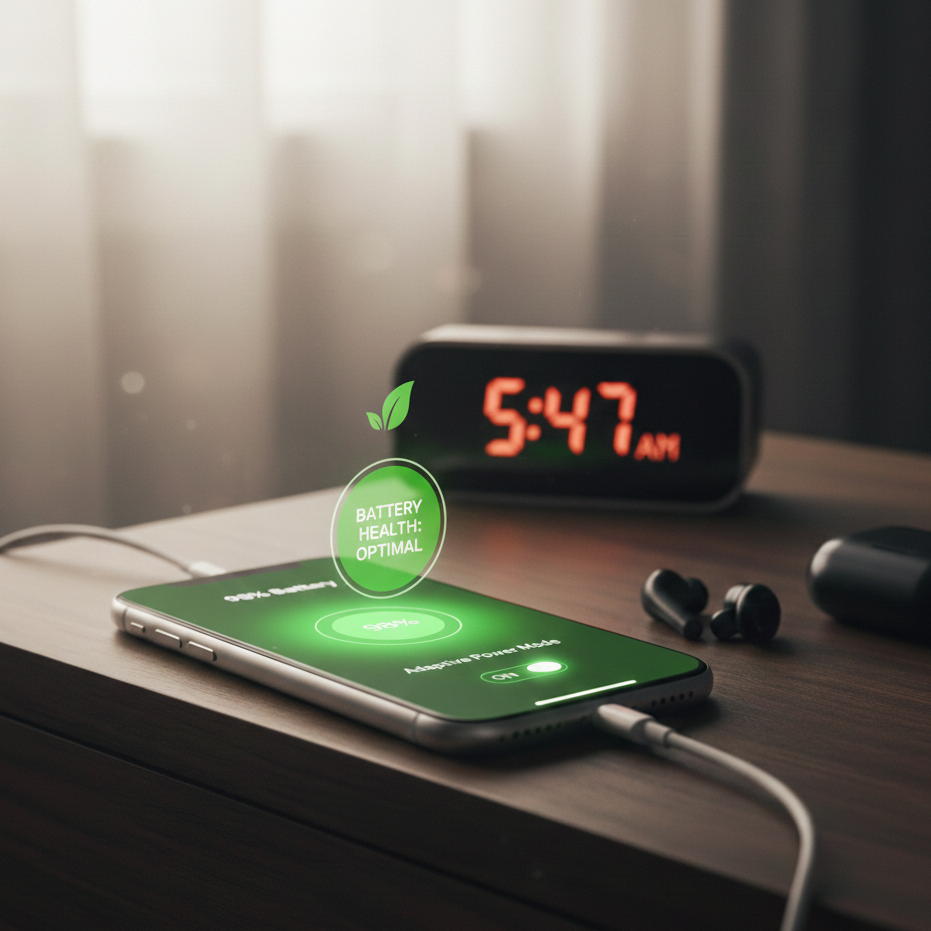
Apple does not provide a single “Off” switch for Liquid Glass, but you can effectively disable its most power-hungry elements through Accessibility settings.
1. Reduce Transparency
This is the most effective way to save power. It replaces the translucent “glass” with solid backgrounds, stopping the real-time refraction calculations.
- Go to: Settings > Accessibility > Display & Text Size
- Toggle On: Reduce Transparency
2. Reduce Motion
This removes the “lensing” and “fluid morphing” effects when you open apps or move through the UI.
- Go to: Settings > Accessibility > Motion
- Toggle On: Reduce Motion
3. Use “Tinted” Mode
If you want to keep the new look but reduce the rendering load, using a Tinted or Dark filter can slightly lower the intensity of the light refraction.
- Action: Long-press your Home Screen > Edit > Customize > Choose Dark or Tinted.
Other Effective Strategies to Fix Battery Drain
Fortunately, Apple provides several built-in tools to mitigate these drops. By adjusting a few key settings, you can significantly reduce the power your phone consumes while you are resting.
- Adaptive Power Mode: A new standard in iOS 26, this feature intelligently predicts your heavy usage periods and throttles background activity during your typical sleep hours.
- Background App Refresh: Disabling this for non-essential apps prevents them from waking the processor to download new content overnight.
- Signal Strength Management: If you live in an area with poor cellular coverage, your iPhone uses excessive energy searching for a signal; switching to Airplane Mode or ensuring a stable Wi-Fi connection can help.
- Optimization Insights: Checking Settings > Battery allows you to see exactly which “rogue” apps were active during the early hours of the morning.
For those who find their battery health is declining due to frequent charge cycles, using a certified power solution is essential. The Apple MagSafe Battery Pack remains a popular choice for maintaining a healthy charge level without stressing the internal lithium-ion cells: Apple MagSafe Battery Pack
Real-World Scenarios Across the Ecosystem
These fixes aren’t just for the iPhone. If you use Universal Control or Handoff between your Mac, iPad, and iPhone, these devices are constantly communicating via Bluetooth and Wi-Fi.
For instance, an iPad left on a desk might wake up an iPhone multiple times a night to sync “Find My” data. Similarly, an Apple Watch that is not on its charger will ping the iPhone for updates, contributing to that overnight percentage drop. Placing your primary device on a charger with Optimized Battery Charging enabled remains the most effective real-world solution.
Comparing Native Tools and Third-Party Fixes
Apple’s native Low Power Mode is a reliable “hammer” for battery issues, but it can be restrictive, disabling features like ProMotion and 5G. In contrast, newer software features like Adaptive Power offer a more surgical approach, maintaining performance while only cutting power to invisible tasks.
Third-party “battery saver” apps are often discussed, but they generally lack the system-level access required to make a real difference. Factual testing shows that Apple’s own internal insights in the Settings app are the most accurate way to diagnose drain compared to any external software.
Who Should Prioritize These Fixes?
These adjustments are best suited for power users who rely on their iPhone for professional tasks from the moment they wake up. They are also vital for owners of older models, such as the iPhone 13 or 14, where the physical battery capacity has naturally degraded over time.
Travelers who may not have easy access to a charger during the day will also benefit from ensuring their “standby” time is as efficient as possible. By tackling these settings, you ensure that 100% really means a full day of productivity.
The Path to a More Efficient iPhone
Managing overnight battery drain is a combination of utilizing new AI-driven features and practicing good charging habits. As the Apple ecosystem becomes more integrated, being mindful of how devices communicate in the background is key to a seamless experience. By taking a few minutes to audit your battery settings, you can eliminate the frustration of a morning low-battery warning and keep your focus on the day ahead.
You may like
How Apple Users Simplify Device Charging With a 3-in-1 Foldable Station
"Note:We may receive a affiliate commission when you purchase products mentioned on our website."