
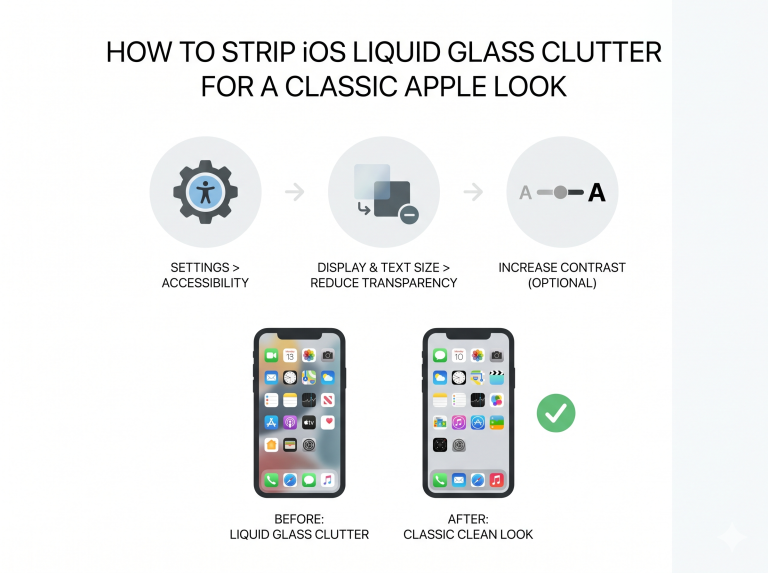
If you miss the clean, flat aesthetic of early iOS versions, you’re not alone. Apple’s “liquid glass” style adds depth with translucency and blur, but it can also feel busy. By tweaking a few built-in settings and applying minimalist design principles, you can restore a classic, distraction-free look across your iPhone. Here’s how to strip away the visual noise and reclaim a streamlined home screen.
Over the years, iOS design evolved into layered, frosted-glass interfaces that emphasize depth. While visually striking, these effects can obscure text and icons, making everyday tasks feel cluttered.
By reverting to a flatter, high-contrast style, users improve legibility, reduce eye strain, and create a more focused experience. Plus, nostalgia for the crisp simplicity of early iOS can be surprisingly satisfying.

How to change it? Liquid glass to Classic Look ?
- Reduce Transparency: Turn off translucency in Settings > Accessibility > Display & Text Size to sharpen backgrounds.
- Increase Contrast: Boost contrast in the same menu for clearer edges and darker text.
- Disable Background Blur: Edit or remove blurred widgets on Home Screen to keep layouts crisp.
- Minimalist Wallpaper: Choose solid or subtle patterns to let icons stand out.
- Custom Icon Shortcuts: Use the Shortcuts app to replace icons with simple monochrome designs.
- Focus Mode Layouts: Create custom Home Screen pages per Focus profile to hide less-used apps.
Many iPhone users may notice that reading messages and notifications feels quicker without blurred backgrounds. High-contrast text pops against solid wallpapers, reducing the time spent deciphering app names.
Minimalist icons and widgets streamline your workflow, whether you’re glancing at time and weather in the morning or jumping between productivity apps at work. Overall, these tweaks deliver a smoother, distraction-free interface.
Frequently Asked Questions
Will disabling transparency affect system performance?
No. Turning off transparency may actually improve system responsiveness and battery life by reducing visual processing overhead.
Are custom icon shortcuts officially supported?
Yes. The Shortcuts app provides an Apple-approved way to personalize app icons, though launching via shortcuts adds a brief animation delay.
Can I revert to default settings easily?
Absolutely. Returning to Settings > Accessibility and toggling transparency and contrast back is all you need to restore the original look.
Does this work on iPad and Mac as well?
iPadOS and macOS offer similar Accessibility options under Display, so you can achieve a consistent flat UI across devices.
Verdict
Stripping away iOS’s liquid glass effects brings back a sense of simplicity and speed. Users who prioritize readability and a distraction-free home screen will appreciate these tweaks. While minimal icon shortcuts introduce a slight launch delay, the overall payoff in clarity and nostalgia is well worth the effort.
"Note:We may receive a affiliate commission when you purchase products mentioned on our website."