
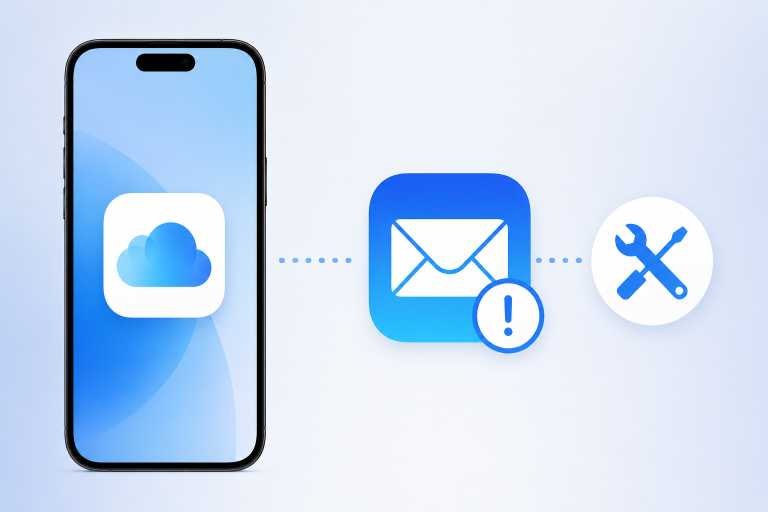
Most iPhone users don’t realize a simple setting can disrupt their entire email flow, leaving important messages unsent or Mail stuck in a perpetual refresh. When iCloud Mail refuses to load on your iPhone, it feels like your digital lifeline just went dark. But before you panic, you can resolve most issues in minutes—here’s why these fixes matter and how they get your inbox back on track.
iCloud Mail powers everything from work notifications to family invites and one-time passcodes. If it’s down or misconfigured on your iPhone, you risk missing critical emails at the worst possible moment. Sync errors, unexpected logouts or a blank inbox can stem from Apple server hiccups, outdated settings, or even network conflicts.
Real-world impact is immediate: you might not receive that urgent PDF from your boss, miss a doctor’s appointment reminder or lose access to two-factor authentication codes. In a world where email remains vital for communication, knowing how to fix iCloud Mail swiftly can save you time, headaches and potential security risks.
Key Features
- Check Apple System Status: Verify if iCloud Mail servers are down before troubleshooting locally.
- Restart Mail App & iPhone: A quick reboot often clears temporary glitches or cache issues.
- Re-enter iCloud Credentials: Sign out and back in to refresh your authentication token.
- Reset Mail Settings: Toggle Mail off and on in iPhone Settings to rebuild server connections.
- Update iOS: Installing the latest iOS patch ensures compatibility and resolves known Mail bugs.
On your morning commute, verifying Apple’s System Status page lets you know if there’s a widespread outage or just a hiccup on your device. If servers are online, a quick restart of the Mail app or a full reboot clears minor sync errors and reloads your inbox in seconds.
Re-entering your iCloud credentials in Settings > [Your Name] > iCloud > Mail can resolve unseen authentication issues. This step rebuilds the secure connection that delivers your messages, so you won’t miss that flight confirmation or encrypted passcode.
Resetting Mail settings—by toggling Mail off and on—forces iOS to re-establish all server links and mailbox data. It’s like giving your inbox a fresh start without losing any emails, ensuring folders and rules sync correctly across iPhone, iPad and Mac.
Updating to the latest iOS version often patches hidden bugs that can interfere with Mail. Apple’s incremental fixes improve background fetch, battery usage and app stability—letting you check email reliably without unexpected freezes or crashes.
Verdict
If iCloud Mail isn’t working on your iPhone, these straightforward troubleshooting steps will restore trust in your inbox. Whether it’s a server-side glitch, a settings hiccup or an outdated iOS, you can quickly diagnose and fix the issue. Stay ahead of email interruptions and keep your day running smoothly with these essential iPhone Mail solutions.
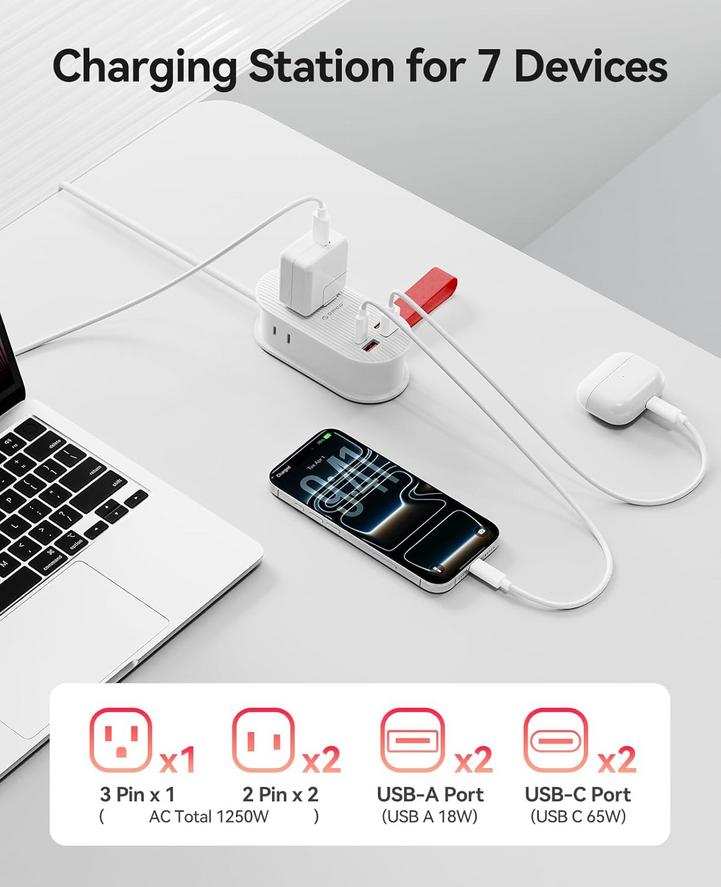
- Practical 7-in-1 Travel Power Strip with 65W USB-C for Apple Devices
- Practical 15W Wireless Car Mount Charger for iPhone – 54% Off
- Why iOS 26’s Key Changes Matter for iPhone Users Before iOS 27
- Why Some Older iPhones Are Missing Out on iOS 27 and What Comes Next
- Everyday Portability: AirPods 4 at 25% Off for Summer Travels
"Note:We may receive a affiliate commission when you purchase products mentioned on our website."