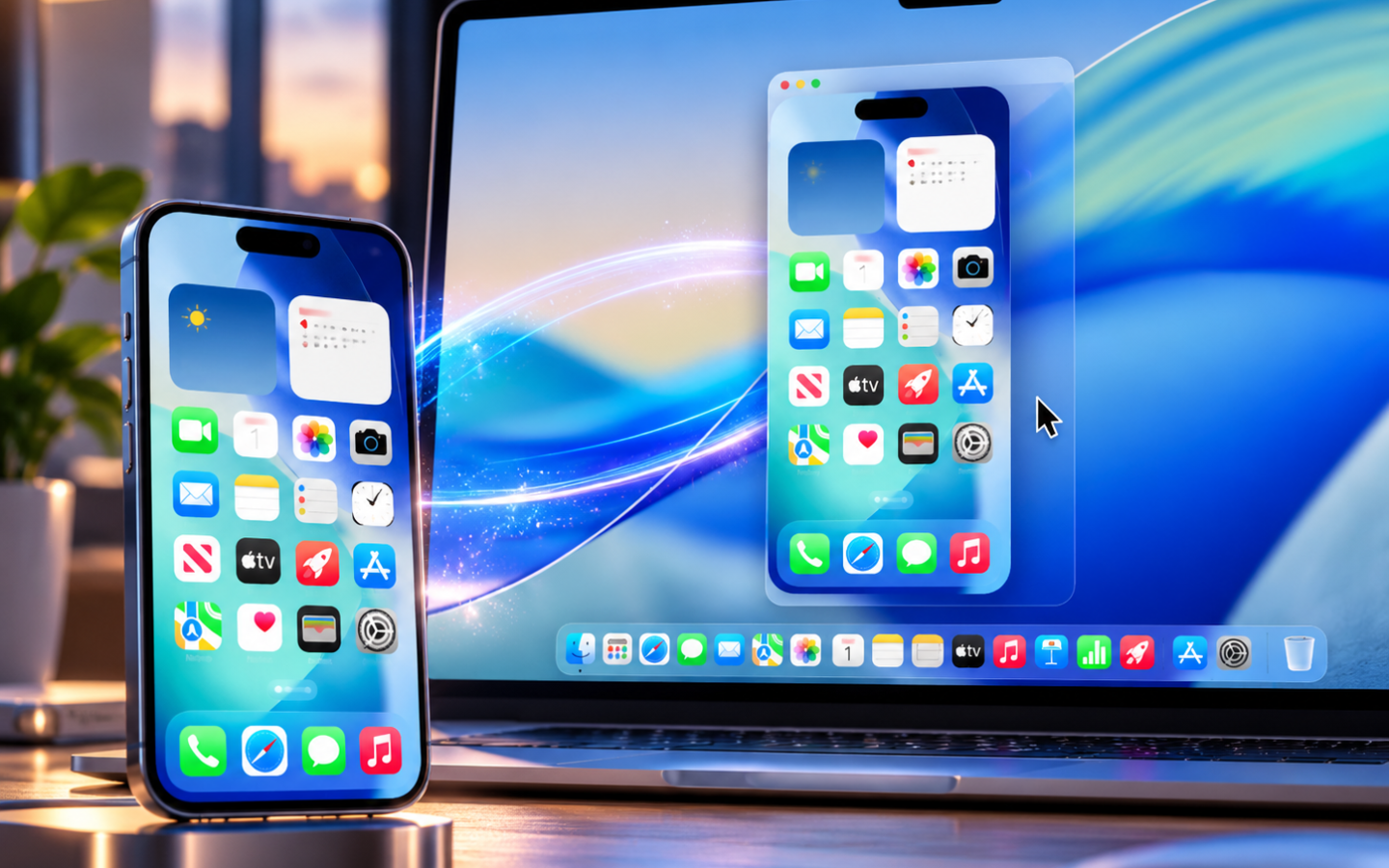
Apple’s iPhone Mirroring is one of the most useful Continuity features for people who own both an iPhone and a Mac. It lets you open and control your iPhone directly from your Mac while the phone remains locked.
But there has always been an annoying limitation: the mirrored iPhone window largely behaved like an iPhone-shaped screen sitting on your Mac.
With iOS 27, Apple is finally addressing that problem. iPhone Mirroring can now resize compatible apps, while Live Activities, notifications, file transfers, and other Continuity features make the experience feel increasingly like your iPhone is integrated directly into macOS.
Here’s what’s new.
1. iPhone Mirroring Windows Can Finally Resize
This is arguably the biggest improvement.
With iOS 27, you can drag the edge of the iPhone Mirroring window on your Mac to resize it.
The clever part is what happens next.
If you’re using a resizable app such as Photos or Weather, the app can dynamically display more content as you enlarge the window. It isn’t simply magnifying the same iPhone interface.
If you’re viewing the Home Screen, App Switcher, or an app that doesn’t support resizing, iPhone Mirroring instead scales the content larger or smaller.
Apple also remembers the size you’ve chosen for compatible apps.
Want to return everything to normal?
Select: View > iPhone Size
There is an important limitation: Apple says window resizing requires iOS 27 or later and isn’t supported on iPhone 11, iPhone 12, iPhone 13 models, or the second- and third-generation iPhone SE.
2. Live Activities Appear on Your Mac
iPhone Mirroring can also bring your iPhone’s Live Activities directly to the Mac menu bar.
That means supported real-time information from your iPhone can remain visible while you’re working on your Mac.
Click a Live Activity to expand it. If your iPhone is nearby, you can open the associated iPhone app through iPhone Mirroring and continue the task there.
Even better, Apple says your iPhone doesn’t need to remain nearby simply for its Live Activities and notifications to appear on your Mac after everything has been configured. The iPhone does need to remain turned on.
3. Drag Files Between iPhone and Mac
iPhone Mirroring is also useful for transferring content.
In supported apps, you can drag and drop files, photos, videos, and other content between your Mac and the mirrored iPhone.
For example, you can drag a compatible file from Finder into an iPhone app or move supported content from the mirrored iPhone onto your Mac.
This reduces the need to email yourself a file, upload it to cloud storage, or repeatedly reach for your iPhone.
4. iPhone Notifications Come to Your Mac
After setting up iPhone Mirroring, supported iPhone notifications can appear directly on your Mac.
Apple adds an iPhone badge to these notifications so you can distinguish them from native Mac notifications.
You can also decide which apps are allowed to send iPhone notifications to your Mac.
On iPhone, go to: Settings > Notifications > [App] > Show on Mac
This can be particularly useful for iPhone-only apps that don’t have a full Mac equivalent.
5. You Can Choose Between Multiple iPhones
Own both a personal and work iPhone?
Apple lets you configure more than one eligible iPhone for iPhone Mirroring and select which one your Mac should use.
Open iPhone Mirroring Settings > Change iPhone and choose the device you want.
There’s still a limitation: you can only actively connect to one iPhone at a time.
How to Set Up iPhone Mirroring
Your Mac needs macOS Sequoia 15 or later, while your iPhone needs iOS 18 or newer, although the new resizing capability specifically requires iOS 27 and compatible hardware.
Both devices must use the same Apple Account with two-factor authentication and have Wi-Fi and Bluetooth enabled.
Your iPhone must also be locked and nearby when actively controlling it through iPhone Mirroring.
Frequently Asked Questions
What’s new with iPhone Mirroring in iOS 27?
The standout improvement is resizable iPhone apps on Mac. Compatible apps such as Photos and Weather can adapt their content when you resize the Mirroring window.
Can I make iPhone Mirroring full screen?
The window can now be resized on supported hardware, but how an individual app responds depends on whether that app supports resizing.
Can I transfer files through iPhone Mirroring?
Yes. Apple supports dragging and dropping files, photos, videos, and other compatible content between the Mac and iPhone in supported apps.
Does iPhone Mirroring work when my iPhone is unlocked?
No. Your iPhone needs to be locked for active iPhone Mirroring. Unlocking and using the iPhone stops the mirroring session.
Is iPhone Mirroring available everywhere?
No. Apple currently says iPhone Mirroring is unavailable in the European Union, so availability depends on region.
Final Takeaway
The ability to resize iPhone Mirroring windows sounds like a small iOS 27 feature, but it fixes one of the experience’s biggest limitations.
Apps such as Photos and Weather can now take advantage of additional Mac screen space instead of remaining trapped inside a fixed phone-sized interface. Combine that with Live Activities, iPhone notifications, drag-and-drop file transfers, and multi-iPhone support, and iPhone Mirroring is becoming a much more practical bridge between iPhone and Mac.
For anyone who spends most of the workday on a Mac, this may be one of iOS 27’s most useful productivity upgrades.
Anker’s Smart 100W Charger: A Practical Upgrade for Your Apple Setu
You may also like
- Practical Upgrade: Acer’s HDMI 2.1 to USB-C Cable for Your Apple Setup
- Siri AI in iOS 27: 5 New Features You Need to Try First
- Upgrade Your Desk: Practical Titanium MagSafe Mount Drops to $10
- iOS 27 Finally Fixes iPhone Mirroring: Here’s What’s New on Mac
- AirTag 2: Smart Tracking for Your iPhone, iPad & Mac Essentials
"Note:We may receive a affiliate commission when you purchase products mentioned on our website."