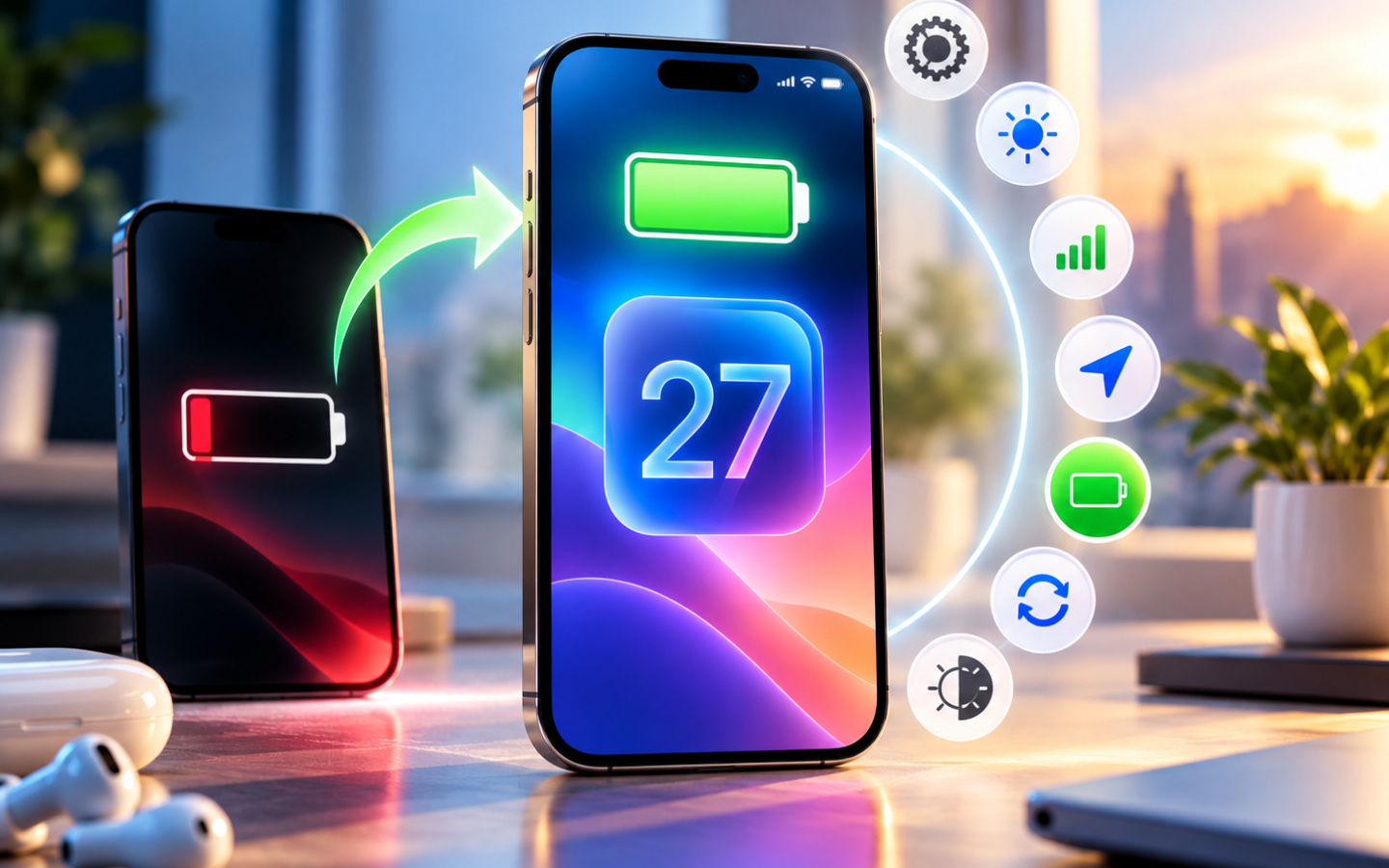
After installing iOS 27, some iPhone users may notice their battery draining faster than expected. A major software update can make your phone work harder temporarily, but there are also several settings you can adjust to improve battery life.
Before assuming iOS 27 has permanently damaged your battery performance, Apple recommends waiting a few days. Update-related tasks can continue running in the background and temporarily affect both battery life and temperature.
If your iPhone still isn’t lasting as long as you’d like, try these seven practical fixes.
1. Check What’s Actually Draining Your Battery
Start with Settings > Battery.
iOS 27’s Daily Usage section compares today’s battery consumption with your recent usage. Tap View All Battery Usage to see which apps and system activities are consuming the most power.
Pay attention to apps showing excessive Background Activity, notifications, or unusually long screen time.
2. Wait for iOS 27 Background Tasks to Finish
If you recently updated, your iPhone may still be completing setup tasks.
Under Settings > Battery, you may see an Ongoing iOS Update insight. Apple says this indicates update-related processes are continuing in the background and can temporarily affect battery life and thermal performance.
Give your iPhone a few days before deciding that iOS 27 has created a lasting battery problem.
3. Turn On Low Power Mode
Low Power Mode is one of the quickest ways to extend battery life.
On newer iPhones, go to:
Settings > Battery > Power Mode > Low Power Mode
Low Power Mode reduces power consumption by limiting features including Background App Refresh, automatic downloads, email fetching, visual effects, and some display activity.
You can also add Low Power Mode to Control Center for faster access.
4. Enable Adaptive Power
Supported iPhones can use Adaptive Power to automatically make small adjustments when your usage is higher than usual.
Go to: Settings > Battery > Power Mode > Adaptive Power
Apple says Adaptive Power can slightly lower display brightness, reduce background activity, make performance adjustments, and automatically activate Low Power Mode at 20%. It is supported on selected newer models, including iPhone 15 Pro and later compatible devices.
5. Reduce Screen Brightness
Your display can be one of the biggest battery consumers.
Lower brightness from Control Center or enable Auto-Brightness under:
Settings > Accessibility > Display & Text Size > Auto-Brightness
Apple specifically identifies high brightness as a potential reason for increased battery consumption and may even display a Battery suggestion when brightness is consistently high.
6. Use Wi-Fi and Watch Your Cellular Signal
Poor cellular reception can quietly drain your battery because the iPhone has to work harder to maintain a connection.
Apple recommends using Wi-Fi when available, as it generally consumes less power than cellular networks. If you’re somewhere with no coverage for an extended period, Airplane Mode can prevent your iPhone from continuously searching for a signal.
On supported 5G iPhones, 5G Auto can also switch to LTE when full 5G performance isn’t necessary.
7. Keep Your iPhone Cool
Heat affects both battery performance and long-term battery health.
Apple recommends using and charging an iPhone in ambient temperatures between 32°F and 95°F (0°C–35°C). If the device becomes too warm, iOS can automatically slow or pause charging until temperatures return to normal.
Avoid leaving your iPhone in direct sunlight, a hot car, or other high-temperature environments.
Frequently Asked Questions
Why is iOS 27 draining my battery so fast?
Your iPhone may still be completing background tasks after the update. Apple recommends waiting a few days and checking Battery settings again.
Should I use Low Power Mode after updating to iOS 27?
Yes, if you need longer battery life. It temporarily reduces several background and power-intensive activities.
How do I know which app is draining my battery?
Open Settings > Battery > View All Battery Usage and inspect App and System Activity.
Final Takeaway
If iOS 27 is draining your iPhone battery, don’t immediately assume something is wrong. Give post-update processes time to finish, then check Battery Usage for specific causes.
Using Low Power Mode, Adaptive Power, lower screen brightness, Wi-Fi, and better temperature management can help your iPhone last longer throughout the day. If poor battery life continues, check Battery Health to determine whether an aging battery rather than iOS 27 may be responsible.
You may also like
- iOS 27 draining your iPhone battery? 7 ways to extend battery life
- Selore USB C Docking Station: A Practical Upgrade for Your Apple Setup
- Portable Power for Starlink Mini: Essential for Apple Road Warriors
- Essential AirPods Pro 3: A Smart Upgrade for Your New iPhone 18 Pro
- Bose QuietComfort Ultra: Smart Noise Cancelling for Your Apple Setup
"Note:We may receive a affiliate commission when you purchase products mentioned on our website."