
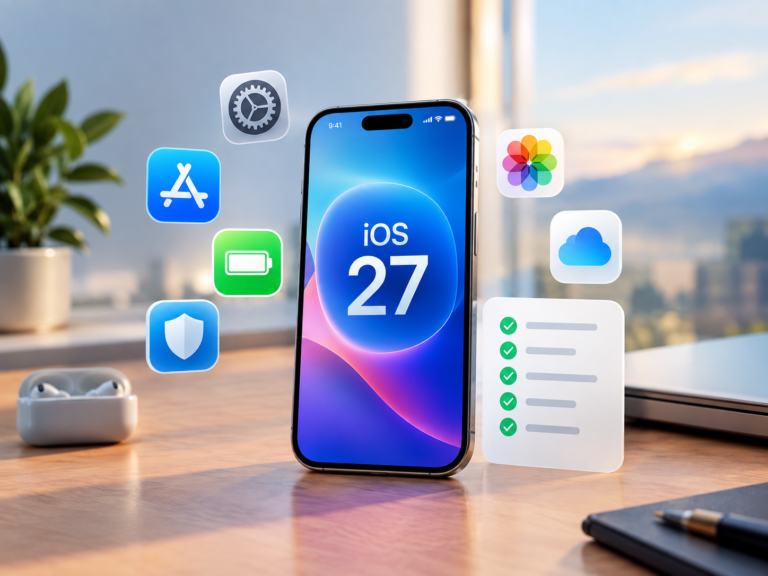
Installing iOS 27 is only the beginning. Apple’s latest iPhone update introduces smarter Siri, Apple Intelligence improvements, Liquid Glass customization, new photography tools, enhanced parental controls, and other system changes.
After the installation finishes, it is worth spending a few minutes reviewing your iPhone. Some settings may have changed, while other features are worth configuring before you return to normal use.
Here are six essential things to do after installing iOS 27.
1. Check Your Privacy and Security Settings
A major iOS update is a good opportunity to review your privacy settings.
Open Settings > Privacy & Security and review which apps have access to your location, camera, microphone, photos, contacts, and other personal information.
Pay particular attention to Location Services and Tracking. Disable access that an app no longer needs.
Also check Settings > General > Software Update > Automatic Updates and make sure automatic updates are configured according to your preference. Apple recommends keeping software updated to receive security fixes and other improvements.
2. Review Battery Usage After iOS 27
Don’t panic if your iPhone appears to use more battery immediately after installing iOS 27.
Apple says certain update-related tasks can continue running in the background after installation. During this period, you may see an “Ongoing iOS Update” insight under Settings > Battery. Battery life and thermal performance should return to normal after those activities finish.
Open Settings > Battery and check Daily Usage and App and System Activity to see which apps or system processes are consuming power.
If battery life remains unusually poor after several days, investigate individual apps and check Battery Health.
3. Customize the New Liquid Glass Appearance
iOS 27 gives you more control over Apple’s Liquid Glass interface.
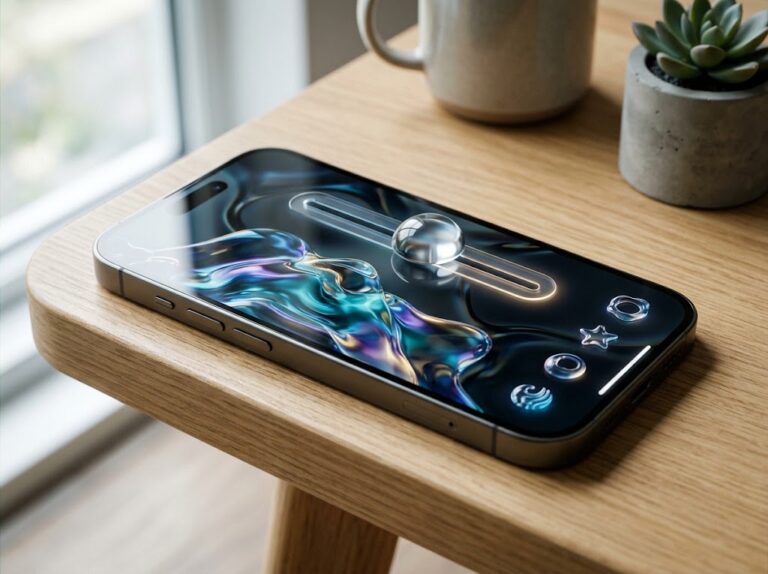
Go to Settings > Appearance > Liquid Glass and adjust the slider between a clearer and more tinted appearance.
If you find transparent menus or controls difficult to read, moving the slider toward the tinted side can provide a more solid-looking interface.
Remember that Apple provides an appearance control rather than a traditional “turn off Liquid Glass” switch.
4. Explore the New Apple Intelligence Features
If your iPhone supports Apple Intelligence, take some time to explore the new AI capabilities in iOS 27.
Depending on your device, language, and region, you can try features involving Siri, Visual Intelligence, Photos, writing tools, and Shortcuts.
Don’t assume every iOS 27 feature is available on every compatible iPhone. Apple notes that feature availability can vary by device, language, and region.
5. Review Camera and Photos Settings
iOS 27 introduces several useful photography improvements.
Open the Camera and Photos apps and explore the new tools rather than waiting to discover them accidentally.
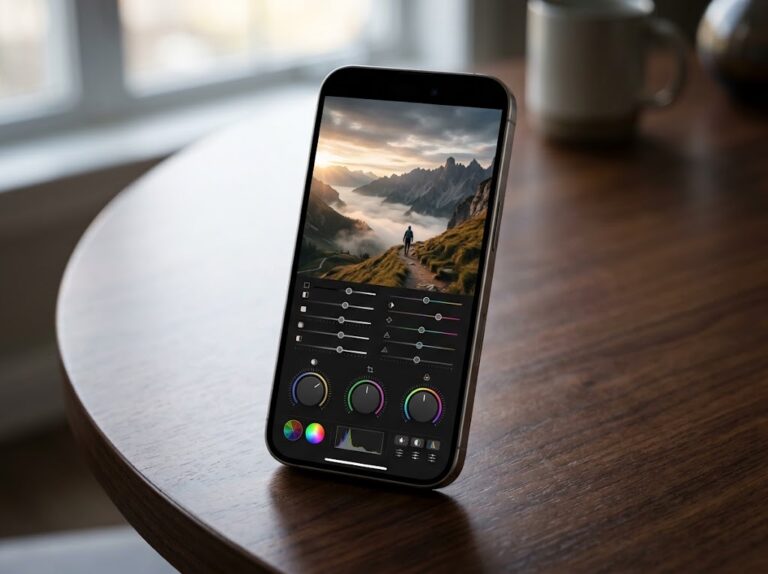
Photographers can customize frequently used Camera controls, while Photos adds new ways to organize and edit images. Apple Intelligence-supported devices also gain additional AI-powered photography capabilities.
This is particularly useful if you use your iPhone as your primary camera.
6. Check Your Important Apps
Finally, open the App Store and check for pending updates.
Major iOS releases can be followed by app updates designed to improve compatibility with the new operating system. Prioritize apps you rely on for banking, authentication, work, communication, cloud storage, and other important services.
If an app behaves unexpectedly after the update, check whether a newer version is available before troubleshooting further.
Frequently Asked Questions
What should I do after installing iOS 27?
Review privacy settings, check battery usage, customize Liquid Glass, explore Apple Intelligence, review Camera and Photos, and update your important apps.
Why is my iPhone battery draining faster after iOS 27?
Apple says background tasks can continue after an iOS update. Check Settings > Battery and give the device a few days before judging long-term battery performance.
Should I change Liquid Glass settings in iOS 27?
It depends on your preference. The Liquid Glass slider lets you choose between a clearer and more tinted appearance.
Final Takeaway
A successful iOS 27 installation doesn’t mean you’re finished. Reviewing privacy, battery, appearance, AI, photography, and app settings can help you get more from the update while identifying potential problems early.
Give your iPhone a little time to finish background tasks, explore the new features gradually, and customize iOS 27 around the way you actually use your device.
You may also like
- Belkin 45W Dual GaN USB C Charger: A Powerful Upgrade for Your Apple Gear
- Bose SoundLink Flex: Portable Audio Upgrade for Your Apple Setup
- 6 Things to Do After Updating Your iPhone to iOS 27
- Essential Protection: SUPFINE Magnetic Case for iPhone 18/17 Pro Max
- Practical Upgrade: The FEZIBO Electric Standing Desk for Your Apple Setup
"Note:We may receive a affiliate commission when you purchase products mentioned on our website."