
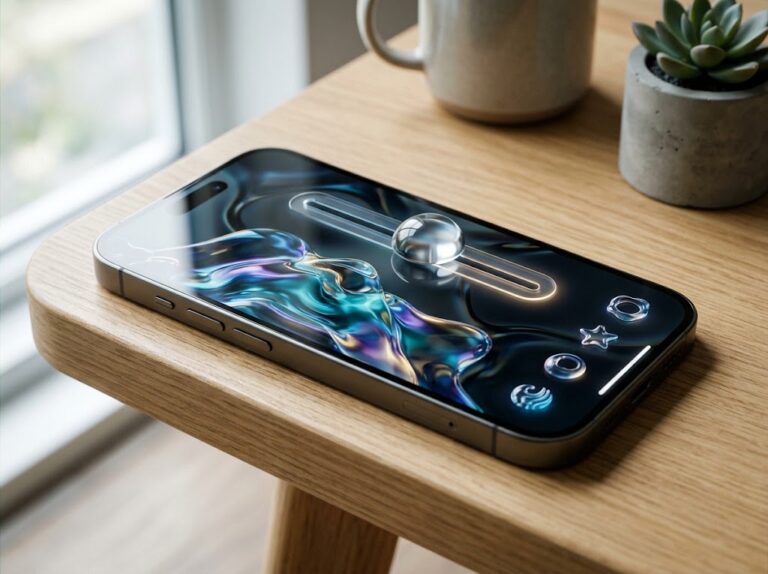
Apple is giving iPhone users more control over the Liquid Glass interface in iOS 27. Instead of forcing users to choose between a couple of preset appearance options, Apple has introduced a new slider that lets you adjust the Liquid Glass effect from ultra-clear to fully tinted.
The change is particularly useful for people who find highly transparent interface elements difficult to read. However, there is one important detail: iOS 27 does not include a simple switch to completely turn Liquid Glass off. Apple treats the slider as a personalization control rather than an on/off setting.
What Is the Liquid Glass Slider in iOS 27?
Liquid Glass is Apple’s system-wide interface design that gives menus, controls, navigation elements, and other parts of iOS a translucent, glass-like appearance.

With iOS 27, Apple has added a dedicated slider that lets you change how transparent or tinted that interface looks.
At one end, Liquid Glass is more clear and transparent. Moving the slider toward the other end increases the tint, producing a more solid-looking appearance.
Apple says the updated Liquid Glass design also features more uniform refraction, improved contrast, and sharper, more defined app icons.
How to Adjust Liquid Glass on iPhone
Changing the appearance takes only a few seconds:
- Open Settings.
- Tap Appearance.
- Select Liquid Glass.
- Drag the slider left for a clearer appearance.
- Drag it right to increase the tint.
Apple’s current iPhone User Guide confirms that this is the official way to customize the Liquid Glass appearance in iOS 27.
You can move the slider until you find the balance that works best for your eyes and your preferred visual style.
Can You Completely Turn Off Liquid Glass?
No. There is currently no dedicated “Turn Off Liquid Glass” switch in iOS 27.
This is an important distinction because searches for “disable Liquid Glass” or “turn off Liquid Glass” may suggest that Apple has provided a traditional off switch. It has not. Instead, Apple provides a continuous appearance slider ranging from ultra-clear to fully tinted.
So if your goal is to make iOS 27 look less transparent, the best approach is to move the slider toward the fully tinted side.
What If the Slider Doesn’t Work?
There is an important accessibility-related limitation.
Apple says that if Reduced Transparency or Increased Contrast is enabled in Accessibility settings, you need to turn those options off before you can change the Liquid Glass appearance using the slider.
You can check these settings under:
Settings > Accessibility > Display & Text Size
If you’re trying to improve readability rather than preserve the Liquid Glass effect, Apple’s accessibility settings also provide additional ways to adjust the appearance of text and visual elements.
Does the Slider Change the Entire iPhone?
Liquid Glass is a system-wide design, so the slider affects the overall appearance of supported iOS interface elements rather than acting as an individual app setting.
The adjustment is therefore most noticeable in areas where translucent elements appear over other content, such as menus, controls, and system interface panels. Apple has not documented the setting as a per-app customization.
Frequently Asked Questions
How do I reduce Liquid Glass transparency in iOS 27?
Go to Settings > Appearance > Liquid Glass and move the slider toward the fully tinted side.
Can I turn off Liquid Glass completely?
No. iOS 27 provides a slider from ultra-clear to fully tinted rather than a complete off switch.
Does iOS 27 have a Liquid Glass transparency setting?
Yes. The new Liquid Glass slider lets users customize the appearance directly from Settings.
Why can’t I change the Liquid Glass slider?
Check whether Reduced Transparency or Increased Contrast is enabled under Accessibility. Apple says these settings must be turned off to change the Liquid Glass appearance.
Final Takeaway
The new Liquid Glass slider in iOS 27 gives iPhone users considerably more visual control without removing Apple’s redesigned interface. If you prefer the glass effect, keep the setting closer to ultra-clear. If you want stronger contrast and a less transparent interface, move it toward fully tinted.
While Apple hasn’t provided a complete Liquid Glass off switch, the new slider is a practical middle ground between transparency and readability.
"Note:We may receive a affiliate commission when you purchase products mentioned on our website."