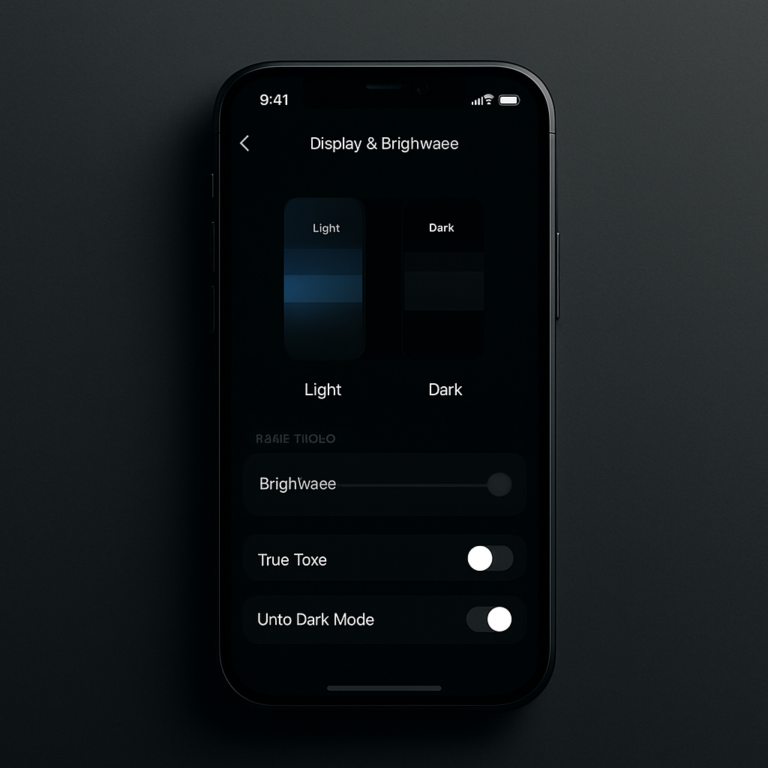

For parents, giving a child an iPhone or iPad can create a difficult balance. These devices are useful for school, communication and entertainment, but too much time on social media, games or videos can quickly become a problem.
Apple’s built-in Screen Time feature gives parents a simple way to understand how a child is using their device and set reasonable boundaries. Parents can monitor app and website activity, schedule downtime, limit apps, control communications and restrict age-inappropriate content.
What Is Apple Screen Time?
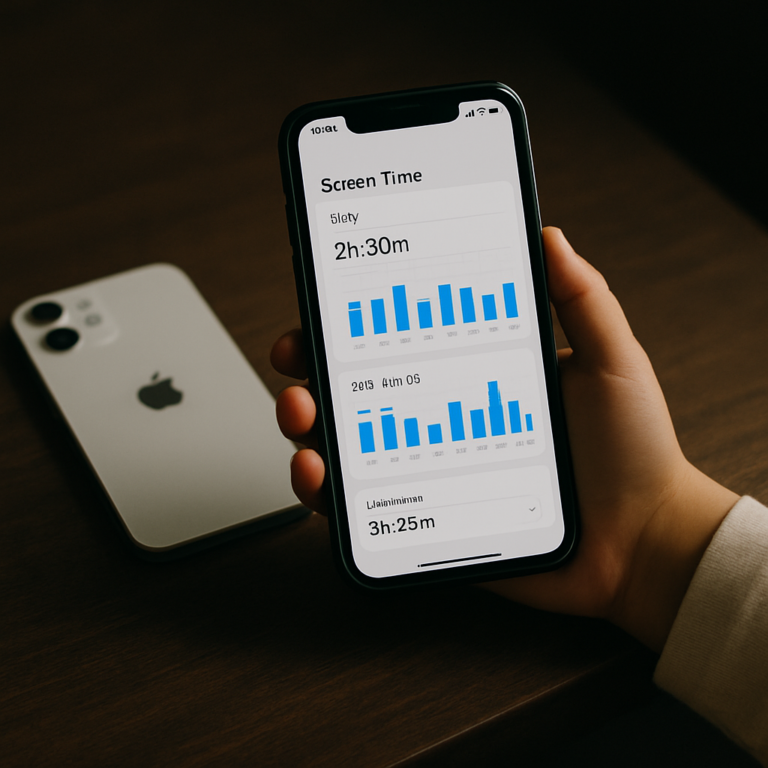
Screen Time is Apple’s built-in tool for managing device usage. For a child’s account, parents can see information such as how much time is spent on apps and websites, how often the device is picked up and which apps generate the most notifications.
It isn’t designed simply to block everything. Instead, parents can create schedules and limits based on their child’s age, school schedule and family rules.
How to Set Up Screen Time for Your Child
If your family uses Family Sharing, you can manage your child’s Screen Time from your own iPhone or iPad.

Step 1: Open Screen Time
On your iPhone, go to: Settings → Screen Time
Under Family, select your child’s name and follow the onscreen instructions. Apple recommends keeping family devices updated so Screen Time settings can properly sync across devices.
Step 2: Review Their Activity
Once App & Website Activity is enabled, Screen Time can provide a summary of your child’s device usage.
You can see:
Time spent on apps and websites
Most-used apps
Number of device pickups
Apps sending the most notifications
Usage trends over time
This can help you identify whether your child’s screen time is mostly educational, social, gaming or entertainment-related.
Set Daily App Limits
One of the most useful features is App Limits. Parents can set limits for individual apps or categories such as games, social networking and entertainment. For example, you could allow a certain amount of gaming time each day while leaving educational apps available.
This approach can be more practical than completely banning an app.

Use Downtime for Bedtime and Homework
Downtime allows parents to schedule periods when most apps and notifications are unavailable.
For example, you could create a weekday schedule that limits recreational apps during:
Homework time
Family dinner
Bedtime
School preparation in the morning
Phone calls and apps that parents choose to allow can remain available during Downtime.
Control What Your Child Can Access
Screen Time also works as a broader parental-control system.
Under Content & Privacy Restrictions, parents can manage:
App installation and purchases
App age ratings
Movies and TV ratings
Explicit music and other content
Web content
Game Center features
Privacy settings
Location-sharing changes
Certain Siri and Apple Intelligence features
Apple also allows parents to restrict inappropriate websites or choose an Only Approved Websites option for younger children.
Don’t Forget Communication Controls
Screen Time isn’t only about how long children use their devices.
Communication Limits can help parents control who their child can communicate with through supported communication features during allowed screen time and Downtime. Parents can also manage contacts in supported Family Sharing setups.
Children can also request additional time when they reach an app limit. Parents can approve or deny these requests from their own device when Family Sharing is configured.
Protect Screen Time Settings With a Passcode
After configuring Screen Time, set a Screen Time passcode so the settings cannot simply be changed by the child.
Go to: Settings → Screen Time → Lock Screen Time Settings
Apple uses the passcode to protect Screen Time settings.
Screen Distance Can Help, Too
Apple also provides Screen Distance, which can encourage children to move an iPhone or iPad farther away when they hold it too close to their face for an extended period. It can be enabled as part of Apple’s child-safety and Screen Time features.
For younger users, Apple also provides Communication Safety, which can help detect potentially sensitive images or videos before they are sent or viewed on a child’s device. Processing is designed to happen on the device rather than giving Apple access to the photos or videos.
How Much Screen Time Should a Child Have?
There isn’t one perfect number that works for every child.
Instead of focusing only on total hours, parents should look at what the child is doing on the device. One hour of homework or reading isn’t the same as one hour of endless social-media scrolling.
A better approach is to establish family rules around sleep, schoolwork, meals, physical activity and entertainment, then use Screen Time to help enforce those boundaries.
Final Takeaway
Apple Screen Time gives parents a powerful set of tools without requiring a separate parental-control app. You can see usage, set app limits, schedule Downtime, restrict inappropriate content, manage communications and protect the settings with a passcode.
The goal shouldn’t be to monitor every minute of a child’s digital life. Instead, use Screen Time as a tool for creating healthy boundaries and having better conversations about responsible technology use.
For families already using iPhones, iPads and Family Sharing, it is one of the easiest ways to start managing a child’s device use with Apple’s built-in tools.
You may also like
- How Apple Screen Time Can Help Manage Your Child’s Phone Use
- Garmin vívoactive 5: A Smart Fitness Watch for Your Apple Life
- Upgrade Your Mac’s Wi-Fi: TP-Link AC1300 USB Adapter
- Top Wireless Earbuds Under $100 for iPhone and Mac Users in September 2026
- UGREEN Qi2.2 25W Car Mount: Smart Power for Your iPhone On The Road
"Note:We may receive a affiliate commission when you purchase products mentioned on our website."