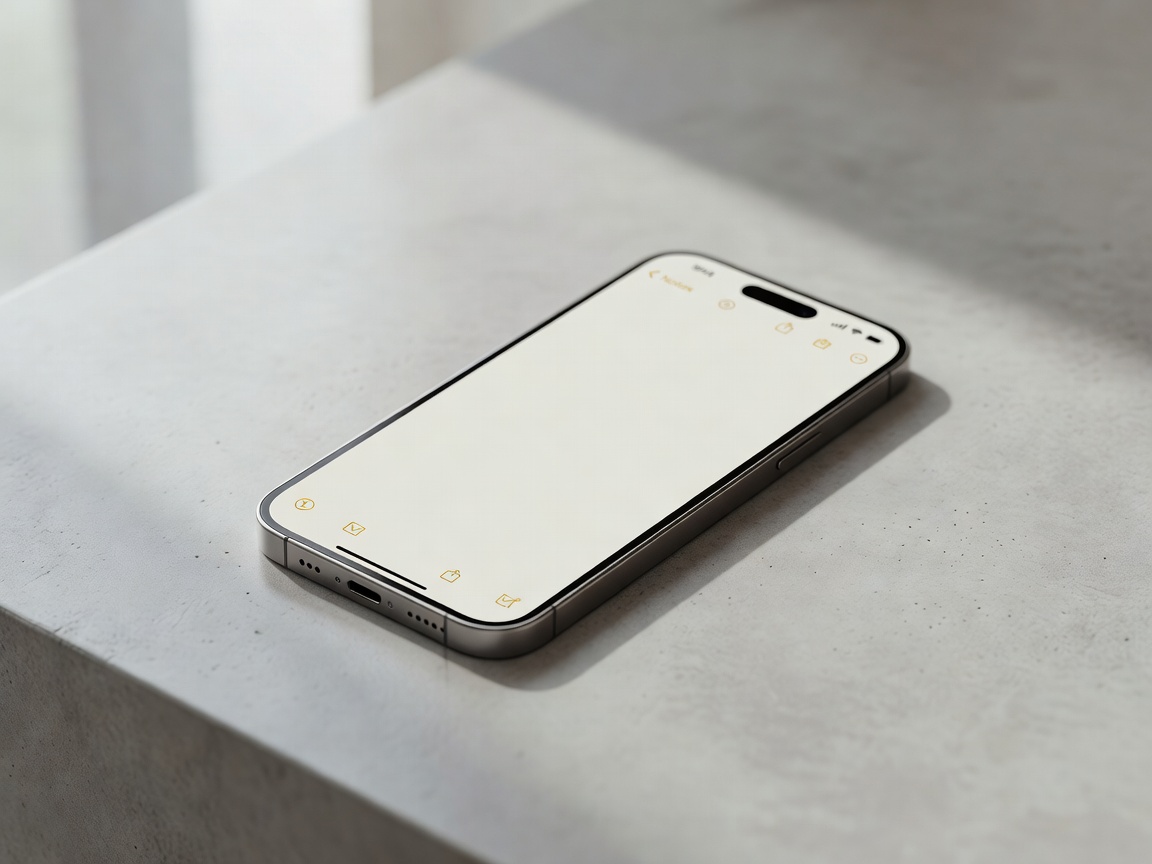
Apple’s Notes app has evolved into far more than a place for quick reminders. Today, it’s a powerful productivity tool that can store everything from shopping lists and meeting notes to scanned documents, travel plans, and project ideas. However, as your collection grows, finding the right note can become challenging without a good organization system.
Fortunately, Apple provides several built-in features—such as folders, tags, Smart Folders, pinned notes, and search—to help keep everything tidy and easy to find. Here are some simple strategies to organize your Apple Notes app like a pro.
1. Create Folders for Major Categories
The easiest way to organize your notes is by grouping them into folders.
Instead of keeping hundreds of notes in one list, create folders based on broad categories such as:
Personal
Work
School
Travel
Recipes
Finances
Health
To create a folder:
Open the Notes app.
Tap Folders.
Tap the New Folder button.
Enter a name and save it.
If you have larger projects, you can also create subfolders to keep related notes together.
2. Use Tags for Flexible Organization
Folders work well for broad categories, but tags make it easier to organize notes that belong to multiple topics.
Simply type a hashtag followed by a keyword, such as:
#Work
#Ideas
#Travel
#Receipts
#Urgent
A single note can include multiple tags, making it easier to find later without moving it between folders.
For example, a business trip itinerary might include:
#Work #Travel #Expenses
Apple automatically recognizes active tags and lets you browse notes by tag or combine multiple tags to narrow your search.
3. Let Smart Folders Organize Notes Automatically
If you regularly use tags, Smart Folders can save time.
Unlike regular folders, Smart Folders update automatically based on the tags or conditions you choose.
For example, you could create Smart Folders for:
All notes tagged #Work
Every note marked #Ideas
Notes containing checklists
Notes with PDF attachments
This means you organize notes once with tags, and Smart Folders handle the rest automatically.
4. Pin Your Most Important Notes
Some notes deserve to stay at the top.
Instead of searching every day for your grocery list or weekly planner, pin frequently used notes.
Good candidates include:
Daily to-do list
Password reminders (if securely locked)
Shopping lists
Meeting agendas
Travel itineraries
Pinned notes always remain at the top of their folder, saving time and reducing unnecessary scrolling.
5. Take Advantage of Powerful Search
Apple Notes includes an excellent search feature.
Beyond titles, it can locate:
Words inside notes
Handwritten text
Scanned documents
Attachments
Tags
Checklists
This means you don’t always need perfect folder organization—as long as your notes contain meaningful keywords, finding them is quick and easy.
6. Use Checklists for Tasks
Instead of creating separate reminder apps for simple tasks, use Notes checklists.
They’re perfect for:
Grocery shopping
Packing lists
Project tasks
Household chores
Daily goals
You can easily check items off while keeping related information in the same note.
7. Lock Sensitive Notes
If you store personal or confidential information, protect it using Locked Notes.
You can secure notes containing:
Financial information
Personal documents
Password hints
Medical information
Private journal entries
Locked notes can be protected using Face ID, Touch ID, or a password for added privacy.
8. Scan Documents Instead of Taking Photos
Rather than snapping photos of receipts or paperwork, use the built-in Document Scanner inside Notes.
Scanned documents:
Look cleaner
Are easier to read
Can often be searched using text recognition
Stay organized alongside related notes
This feature is ideal for contracts, receipts, invoices, forms, and handwritten documents.
9. Create Templates for Repeated Notes
If you regularly write meeting notes, project updates, or journals, create reusable templates.
For example:
Meeting Template
Date
Attendees
Agenda
Discussion
Action Items
Duplicating a template saves time and keeps all your notes consistent.
10. Review and Clean Up Regularly
Even the best organization system needs occasional maintenance.
Every few months:
Delete outdated notes.
Merge duplicate information.
Archive completed projects.
Rename unclear note titles.
Move misplaced notes into the correct folders.
A quick cleanup keeps your Notes app efficient and clutter-free.
Best Organization Workflow
For most users, a simple system works best:
Folders for broad categories.
Tags for flexible organization.
Smart Folders for automatic sorting.
Pinned Notes for frequently used information.
Search to quickly locate anything.
This combination scales well whether you have 50 notes or 5,000.
Frequently Asked Questions
What’s the difference between folders and tags?
Folders store notes in one primary location, while tags let a note belong to multiple categories simultaneously. Smart Folders can automatically group tagged notes.
Can I organize notes without moving them?
Yes. By adding tags and using Smart Folders, your notes stay in their original folder while automatically appearing in additional filtered views.
Will my notes stay organized across my Apple devices?
Yes. If iCloud sync is enabled, your folders, tags, Smart Folders, pinned notes, and edits sync across your iPhone, iPad, and Mac using the same Apple Account.
Final Thoughts
Apple Notes has grown into one of the most capable note-taking apps available, and with a little organization, it can easily become your digital filing cabinet. By combining folders for broad categories, tags for flexible sorting, Smart Folders for automatic organization, and pinned notes for quick access, you can keep everything from work projects to personal reminders neatly arranged. Add in powerful search, document scanning, and reusable templates, and the Notes app becomes a simple yet effective productivity tool that’s always ready whenever inspiration—or important information—strikes.
- Powerful Portable Blower: Your Essential Apple Setup Cleaner
- Yamiry Keypad Smart Door Knob Lock: A Practical Home Upgrade
- How to Customize Liquid Glass Live Wallpapers on iPhone in iOS 27
- How to Turn On Siri AI on iPhone: Setup, Features & Supported Models
- Practical Upgrade: Acer’s HDMI 2.1 to USB-C Cable for Your Apple Setup
"Note:We may receive a affiliate commission when you purchase products mentioned on our website."